
10 Best AI Video Generators in 2026: Compared by Use Case

By M. Zaid Imran | ToolsWorldAI
Last updated: October 6, 2026
M. Zaid Imran is the founder and writer at ToolsWorldAI, a site that helps readers compare AI tools before paying for them. Each guide is based on official documentation, pricing pages, and usage terms, and is checked against the providers’ own pages before publishing. Spotted an outdated price or a mistake? Let us know through the Contact page, and we’ll correct it.
The best AI video generator depends on the finished video you need, not just the best-looking five-second clip. For most people, Runway is the most flexible all-rounder, Google Veo is the strongest pick for scenes with built-in sound, and InVideo is the easiest way to assemble a complete explainer. HeyGen and Synthesia lead for presenter-led videos.
Below, we compare ten tools on US pricing, practical limits, and workflow fit, so you can pick the right one for your budget and project.
How this comparison was researched: Recommendations draw on official product documentation, pricing pages, and usage terms. They are editorial analysis of workflow fit, not results from a hands-on performance test. Suggested projects are ideas for your own trials, not claimed test outputs.
Quick Picks: Best AI Video Generator by Need
| Your goal | Top pick |
|---|---|
| Best overall for creative flexibility | Runway |
| Best for video with generated sound | Google Veo |
| Best for beginners and full explainers | InVideo |
| Best free option to try | Runway (one-time credits) or HeyGen (free plan) |
| Best for presenter videos | HeyGen |
| Best for business training | Synthesia |
| Best for Adobe users | Adobe Firefly |
| Best for animating existing footage | Luma |
| Best for animating illustrations | Midjourney |
Best AI Video Generator Comparison: The Shortlist
There are three overlapping categories: footage generators, avatar platforms, and video assembly tools. Choose the category first, then compare subscriptions.
These are selected entry-level or relevant plans, not equivalent packages. Prices are in USD, before tax, billed monthly unless noted. Verify current prices on each provider’s page before buying.

| Tool | Best for | Price reference | Free option | Key limitation |
|---|---|---|---|---|
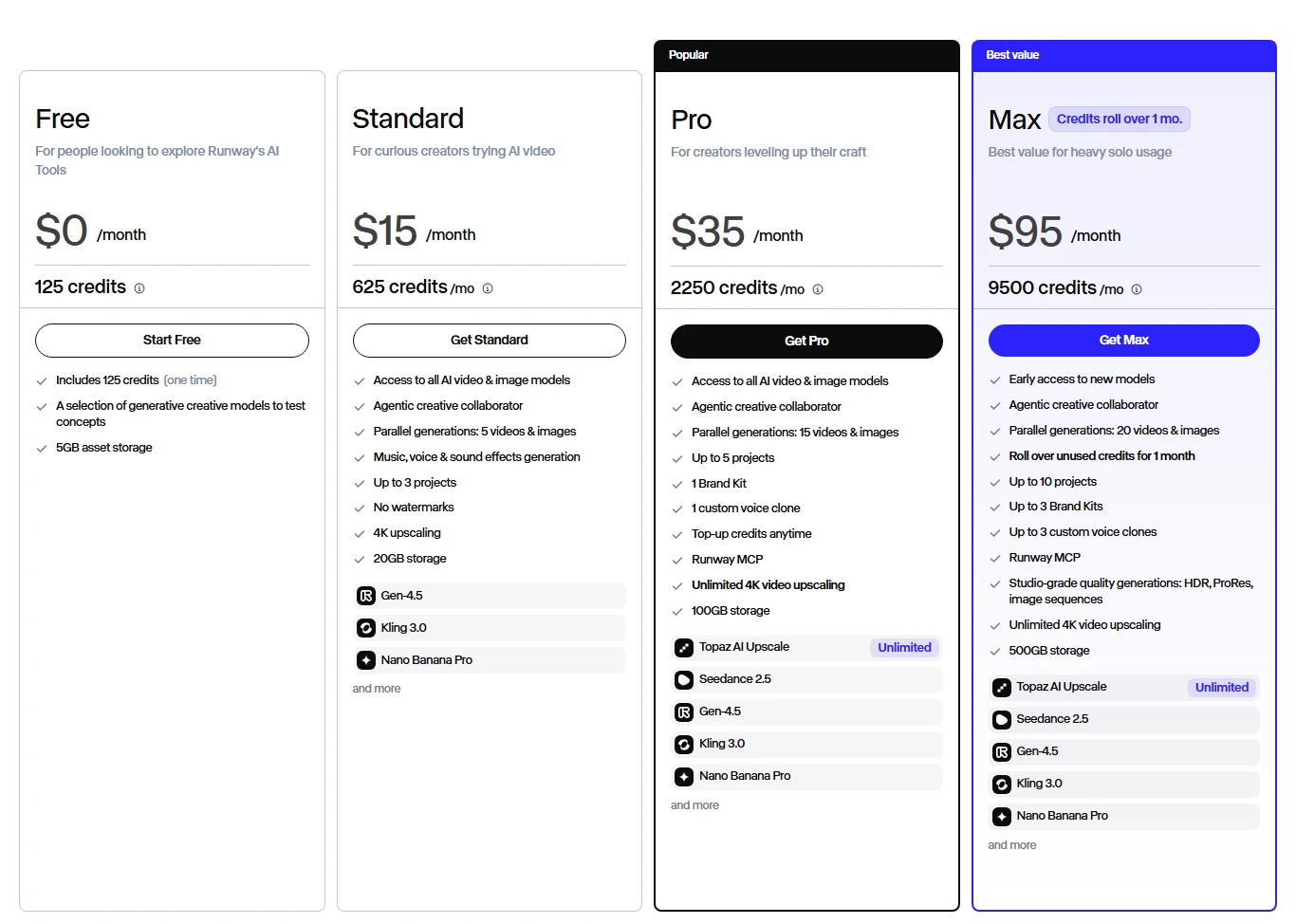
| Runway | Flexible creative production | Standard: $15/month | One-time credits | 625 credits; retries reduce usable output |
| Google Veo (via Flow) | Scenes with generated audio | Google AI Pro: $19.99/month | Check provider | Model access and credit costs vary |
| Adobe Firefly | Adobe-based workflows | Standard: $9.99/month | Check provider | Video uses premium credits |
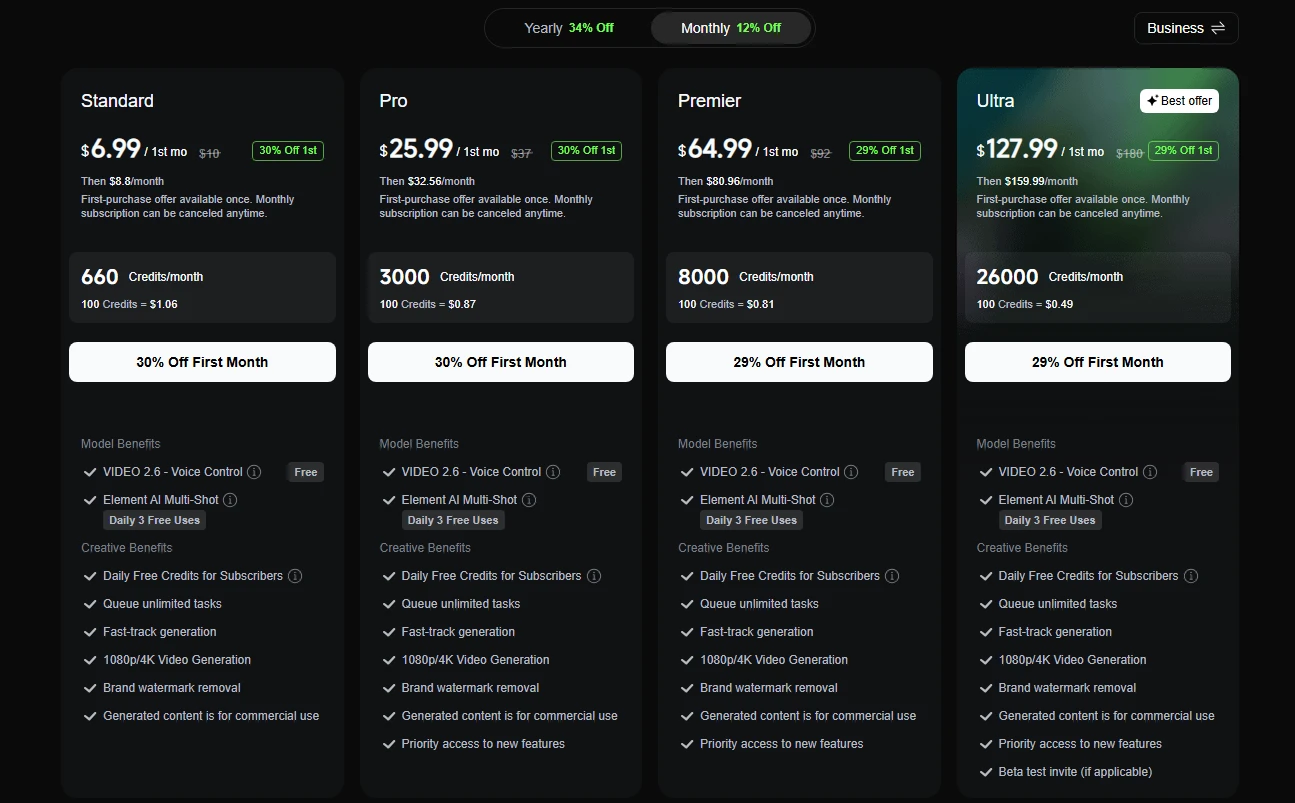
| Kling AI | Reference-led character scenes | Check current checkout | Check provider | Stable monthly price not publicly confirmed |
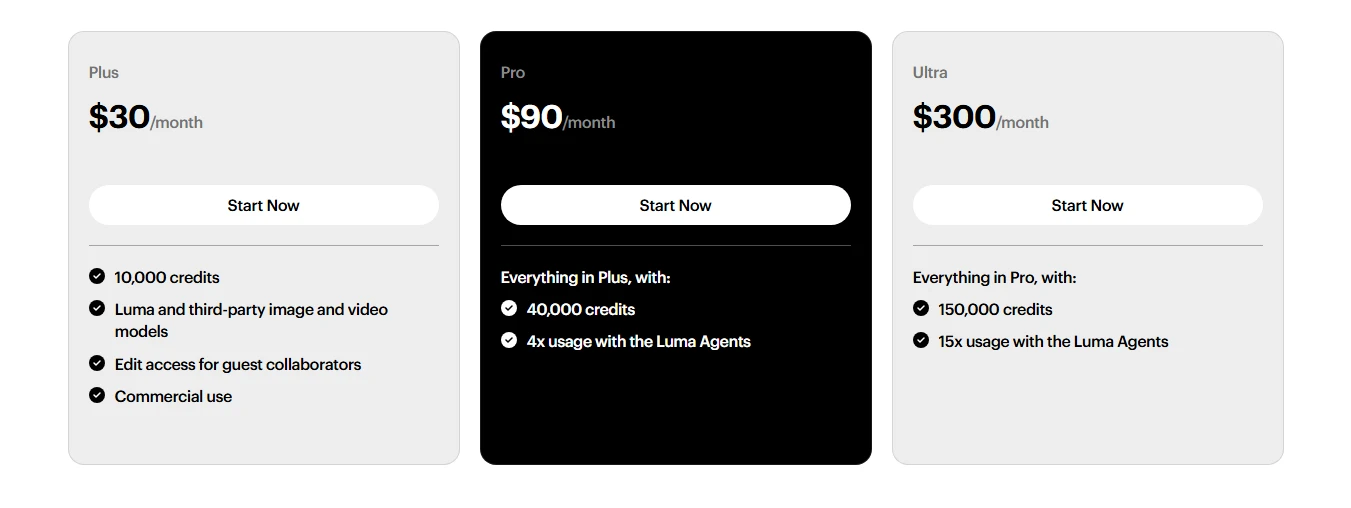
| Luma | Modifying existing footage | Plus: $30/month | Check provider | Higher-quality modes cost more credits |
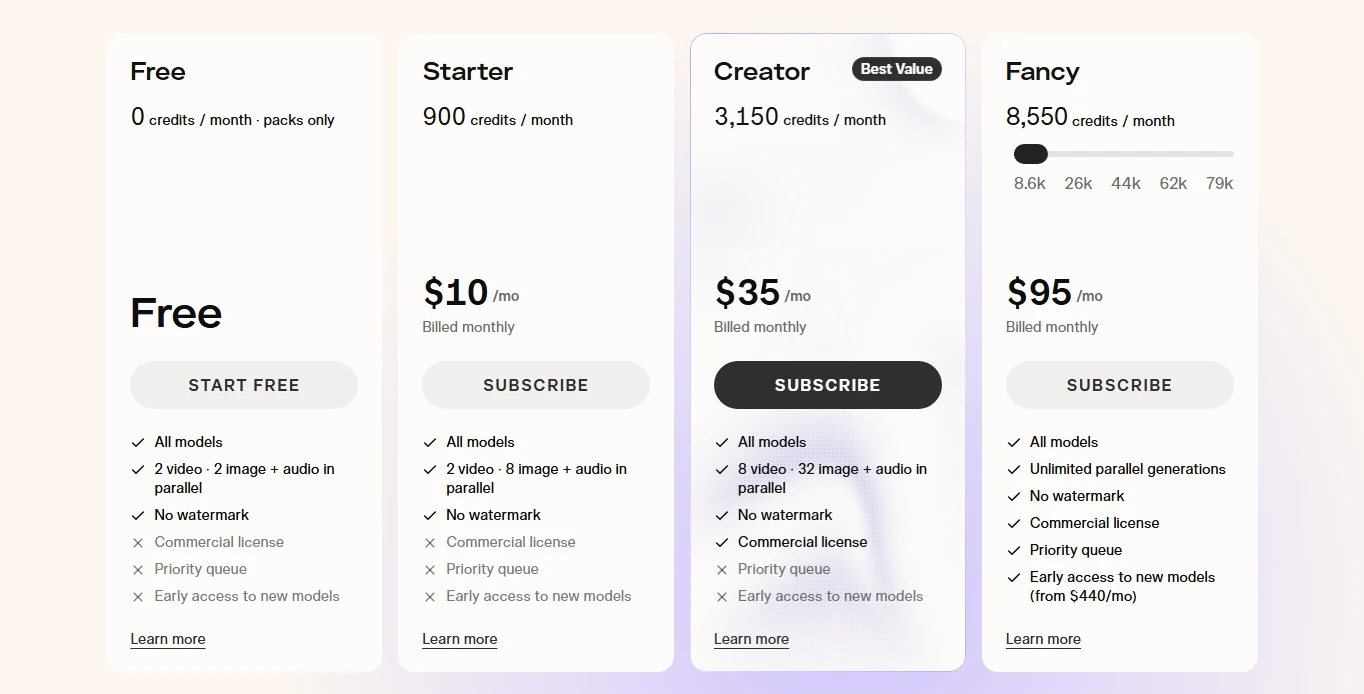
| Pika | Comparing models in one workspace | Starter: $10; Creator: $35/month | Free tier, no monthly credits | Commercial license starts at Creator |
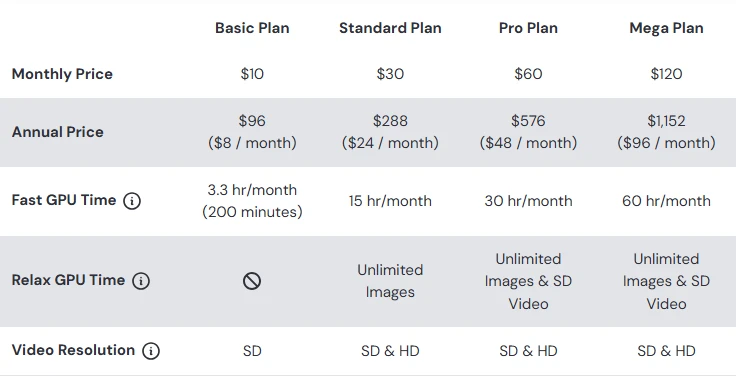
| Midjourney | Animating illustrations | Basic: $10/month | No | Basic video is standard definition |
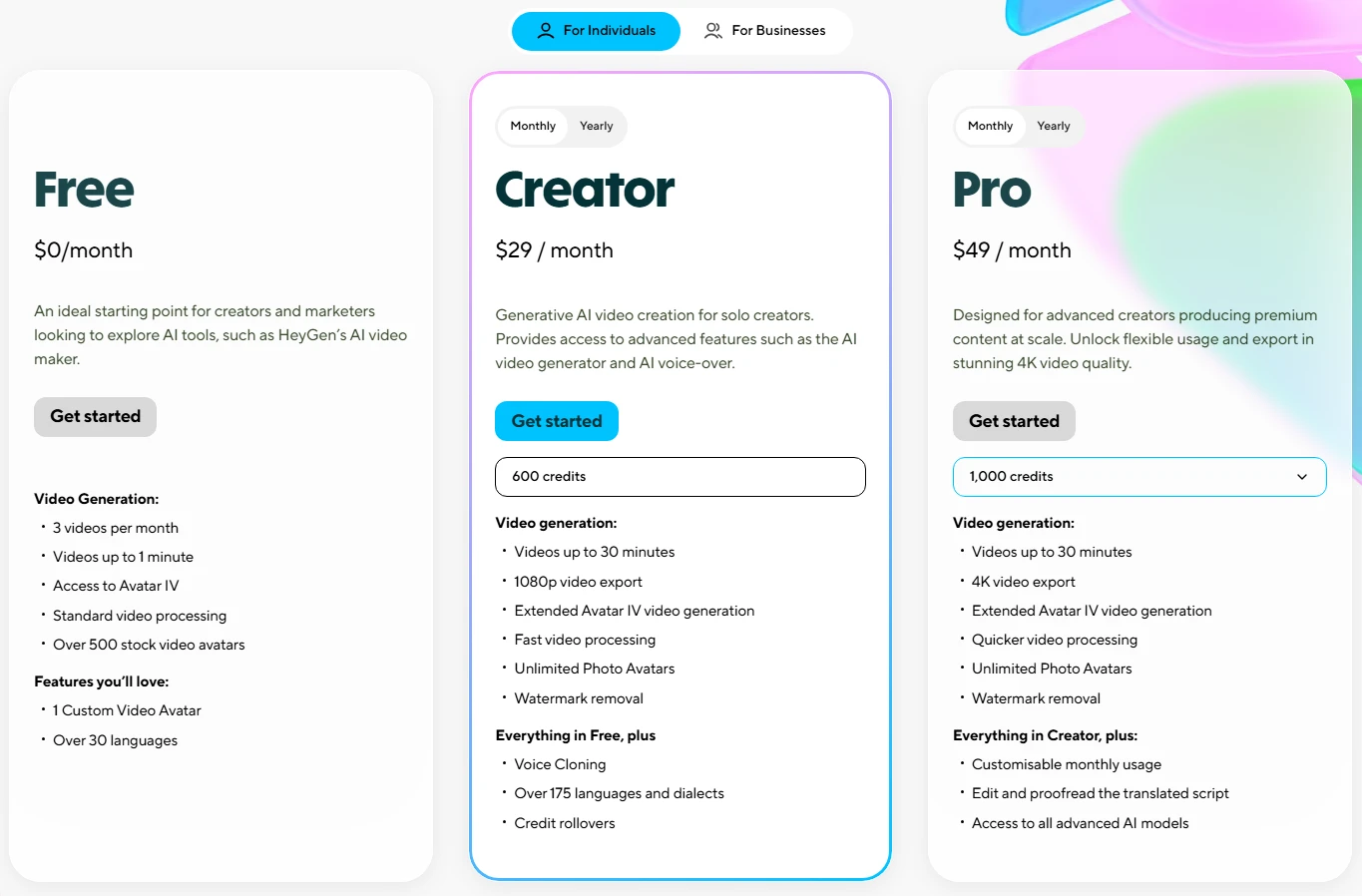
| HeyGen | Presenter videos and localization | Creator: $29/month | 3 videos/month, up to 1 min each | Advanced creation consumes credits |
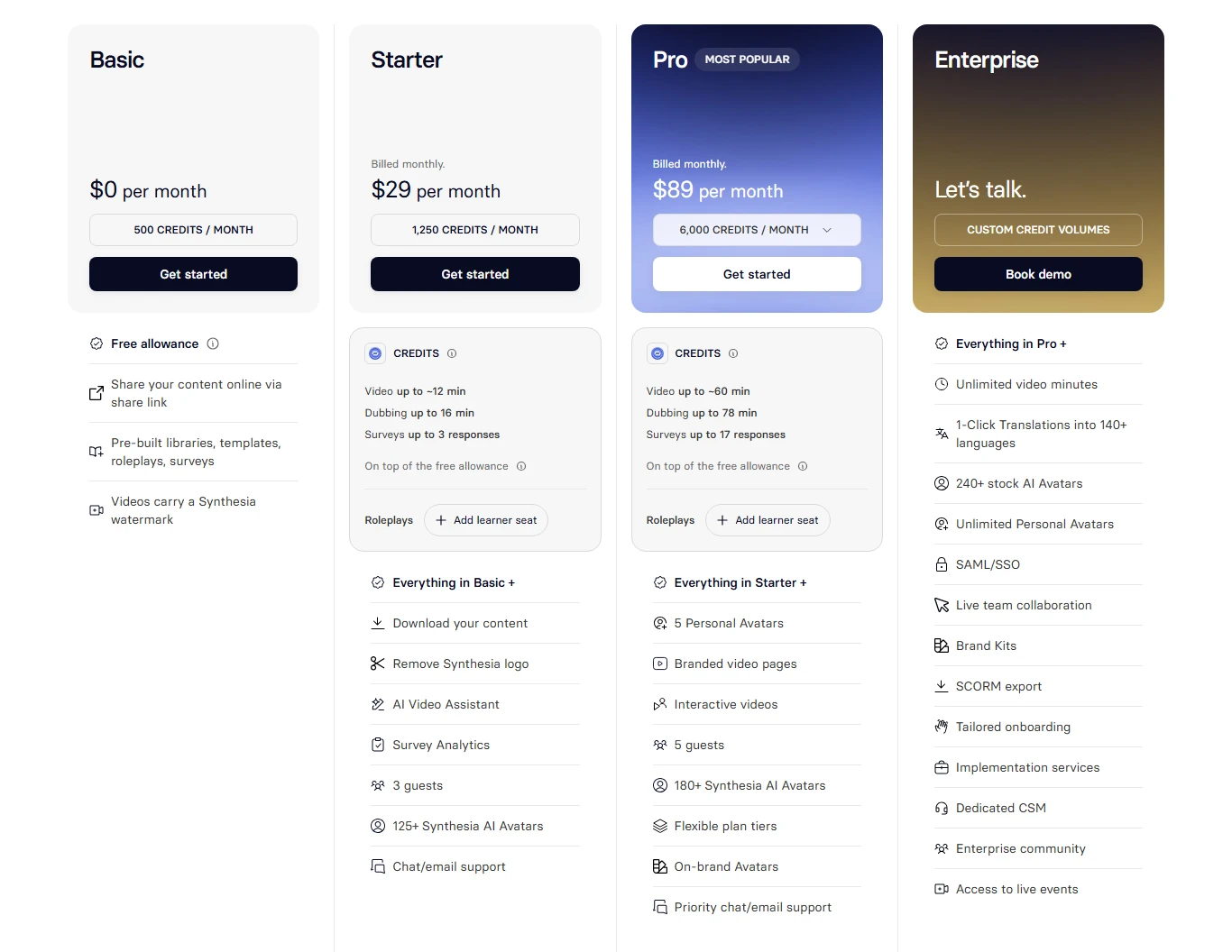
| Synthesia | Repeatable business training | Starter: $29/month | Limited baseline minutes | Downloads and logo removal need paid access |
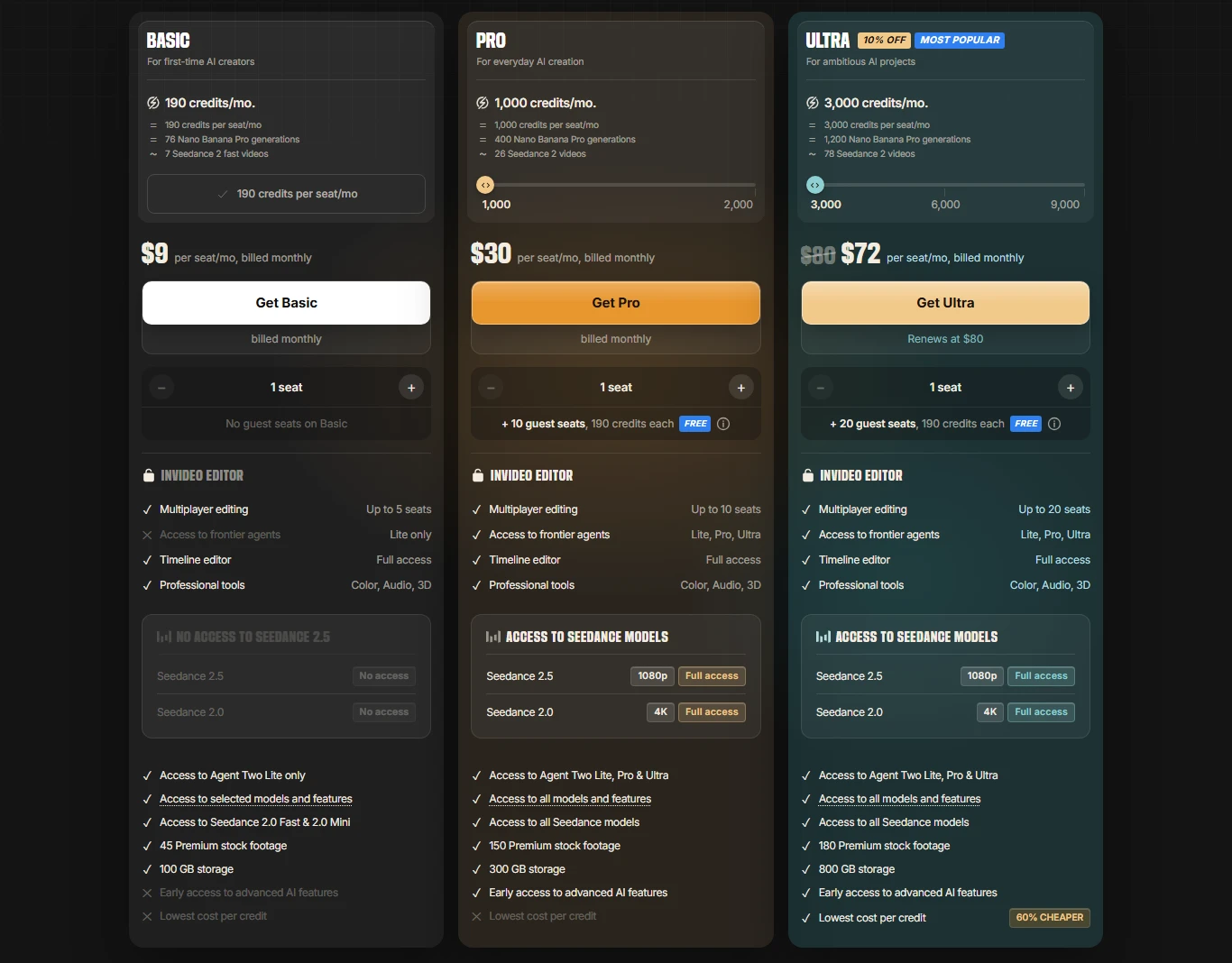
| InVideo | Assembling videos from a brief | Starter: $20/seat/month | Check provider | Selected models only on Starter |
A model is the engine; a platform is where you use it. Several platforms offer overlapping models, so paying for three subscriptions does not necessarily give you three different generation technologies.
The 10 Best AI Video Generators: Strengths and Trade-Offs
1. Runway: Best Overall for Creative Flexibility
Best for: Projects that need generated shots, audio assets, and room to experiment with different models.
Runway brings footage generation, audio assets, and multiple models into one workspace. That flexibility suits a software launch that needs an abstract opening shot, a stylized background, and supporting sound rather than a virtual presenter reading the whole announcement.
Pricing note: Runway lists Standard’s 625 monthly credits as roughly 52 seconds of Gen-4.5 output, before rejected takes. Its listed 4K feature is upscaling, which is not the same as native 4K generation. See Runway’s plan details.
- Pros: A broad set of creative tools and models
- Cons: A modest subscription can disappear quickly during revisions
- Tip: Run one small project first to measure how much finished footage your credits actually buy.
2. Google Veo: Best for Video With Generated Sound
Best for: Short scenes that need sound effects, ambient noise, or dialogue generated alongside the picture.
Google documents native audio capabilities for Veo 3.1, alongside reference images and scene-extension controls. Picture a café opening shot: the cup lands on the table, chairs move in the background, and the room has audible atmosphere. That is a stronger starting point than generating a silent clip and building every sound separately.
Limitation: Google acknowledges issues with speech consistency and synchronization, so check spoken lines word by word before using them in an ad. See Veo’s capabilities and limitations.
- Pros: An integrated picture-and-sound workflow
- Cons: Audio still needs review, and access depends on the Google product and plan
- Tip: Use it for short scenes and plan the edit separately for longer stories.
3. Adobe Firefly: Best for Adobe-Centered Workflows
Best for: Campaign backgrounds, visual concepts, and supporting footage finished in Adobe tools.
Adobe says its own Firefly models are trained on content it has permission or rights to use, and it offers IP indemnification on qualifying plans, subject to terms. That matters to business buyers, but it is not a blanket guarantee covering every output or subscription. See Adobe’s business explanation.

Firefly also hosts third-party models, whose coverage can differ, so check which model you select.
- Pros: Integration with Adobe tools and a documented approach to commercial workflows
- Cons: Subscription, model, and contractual coverage need separate checking
- Tip: For client work, record the selected model and applicable terms alongside the exported file.
4. Kling AI: Best for Reference-Led Scenes
Best for: Recurring characters and planned sequences rather than isolated attractive shots.
Kling’s Video 3.0 documentation describes reference elements, native audio, storyboard controls, and generation up to 15 seconds. These controls suit a small narrative: a character enters a room, notices an object, and reacts. They do not guarantee that every attempt preserves identity or handles the action correctly. See the Kling Video 3.0 guide.
Pricing note: A public starting offer exists, but a stable US monthly price with clear renewal terms could not be confirmed. Check the signed-in checkout before comparing it with other subscriptions.
- Pros: Reference and sequence controls within an audiovisual model
- Cons: Results depend on scene complexity and retries
- Tip: Start with one character and one action, then add complexity.
5. Luma: Best for Transforming Existing Footage
Best for: Creators who already have a clip with the performance or camera movement they want.
Luma’s Ray3.2 documentation describes Modify Video, motion transfer, reframing, and multi-keyframe controls. A good test is a short, self-recorded scene whose setting changes while the action stays recognizable, which gives the model a real performance to work from.
Luma advertises Modify Video V2 for clips up to 20 seconds at 1080p. Inspect movement and lighting preservation rather than assuming it. See Ray3.2’s workflow features.
- Pros: A bridge between recorded footage and generated changes
- Cons: Transformation can introduce continuity problems that need another pass
- Kling vs Luma: Choose Kling to build a reference-led scene from scratch. Choose Luma to change footage you already have.
6. Pika: Multi-Model Option With a Pricing Catch
Best for: Comparing multiple models in one workspace.
Pika’s listed tiers are Free, Starter, Creator, and Fancy, with different credits and commercial permissions. The Free tier lists zero monthly credits and relies on credit packs. Starter includes watermark-free output but no commercial license, and Creator adds it. Check the current Pika plan matrix.
- Pros: Access to multiple models in one workspace
- Cons: The cheapest paid plan is not the one to choose for commercial publishing
- Tip: Compare Pika with Runway using the exact models and settings you plan to use. A lower subscription price alone does not tell you which gives more publishable clips. For paid social content, check licensing first, then credit costs.
7. Midjourney: Best for Animating Artwork
Best for: Atmospheric loops, fantasy artwork, and animated blog illustrations.
Midjourney’s video workflow starts with an image and creates a five-second clip, with an optional motion prompt. It is a focused tool, not a fit for a finished tutorial with narration and captions.
Its documentation distinguishes standard-definition and HD video, with HD available on Standard, Pro, and Mega plans in Fast Mode, described as 480p or 720p respectively. See Midjourney’s video guide.
- Pros: A direct route from a strong still image to motion
- Cons: Resolution and workflow limits make it narrow for finished business videos
- Tip: Start with one subtle movement, such as drifting clouds, rather than a sequence of actions.
8. HeyGen: Best AI Avatar Video Generator for Presenter-Led Marketing
Best for: Product walkthroughs, marketing messages, and localized videos where a person must deliver a script without a new recording session.
HeyGen offers avatars, voice features, and translation capabilities. A practical use is a short product walkthrough with the presenter introducing each section, while the actual software demo stays as a screen recording.
Creator currently includes 600 credits and 1080p export, and the free plan advertises three videos per month of up to one minute each. See HeyGen’s current allowances.
- Pros: Presenter and language workflows in one product
- Cons: Credit use varies by feature and model, so a monthly plan is not unlimited premium output
- Tip: Test a script containing your company name, a number, and an acronym. Those details matter more than a polished generic greeting.
9. Synthesia: Best for Recurring Business Training
Best for: Structured lessons, onboarding, and internal explanations.
Synthesia combines avatars with templates, collaboration, and training-oriented features, with availability varying by plan. The value is being able to revise one section, such as a changed refund procedure, while keeping a consistent presentation across a series. See Synthesia’s business workflows.
Its October 1, 2026 plan update added a shared baseline of ten video or dubbing minutes per month and 500 flexible credits across plans. Paid plans add credits, and access and export restrictions still differ. See the official plan-change notice.
- Pros: A structured approach to repeatable instructional content
- Cons: A presenter template may feel too formal for entertainment or lifestyle content
- Tip: Prioritize clarity, pronunciation, and easy revision over cinematic effects.
10. InVideo: Best for Beginners and Complete Explainers
Best for: Turning a brief or script into a sequence with narration, visuals, and editing.
InVideo’s AI video generator is built around the broader creation process, not just clip generation. For an explainer, draft the narration first, add genuine software recordings, and use generated material only where an illustration improves understanding.
Starter includes selected models and timeline editing, and higher tiers unlock more model access. Check the current feature matrix before assuming a model is included.
- Pros: Video assembly and editing alongside generation
- Cons: You still need to check that the chosen visuals accurately support the script
- Tip: Best when assembling the video, not generating clips, is your main bottleneck.
Which AI Video Maker Fits Your Project?

Best AI Video Generator for YouTube
For a narrated explainer, start with InVideo. For original supporting shots, compare Runway and Veo. A software tutorial should center on real screen recordings so viewers can follow the actual interface.
AI use alone does not exclude a channel from monetization. YouTube’s policy focuses on originality and value, and repetitive or mass-produced content can be ineligible. Build the video around a useful explanation, not a production shortcut. See YouTube’s monetization policy.
Best AI Video Generator for Social Media, TikTok, and Reels
Runway, Kling, and Pika suit generated creative assets, and HeyGen suits presenter-led messages. Decide the opening idea before generating: what should viewers understand in the first few seconds?
For vertical ads, keep the key subject clear of interface overlays, and add captions and prices during editing, where you control every character.
Best AI Video Generator for Marketing and Business

Choose Firefly for Adobe-based creative work, HeyGen for presenter messages, and Synthesia for training. Record the real product wherever accuracy matters. An animation cannot prove a product has a feature, so use generated imagery for mood or explanation and genuine footage for evidence.
Best Text-to-Video AI vs. Image-to-Video AI
Start with text when the scene is open-ended. Start with an image when appearance matters, such as a defined character, room, or visual style.
Veo and Runway are strong text-to-video options. Kling and Midjourney suit reference-image workflows. These are starting points for your own comparison, not measured quality rankings.
Best Free AI Video Generator and Budget Options
For exploring creative generation, start with Runway’s one-time credit allowance. For testing an avatar script, start with HeyGen. Neither is an ongoing production budget.
Searches like “free AI video generator no watermark” are easy to misread. Four separate questions matter: can you generate, download, remove visible branding, and use the result commercially? Passing one does not establish the others. Pika shows the problem: its Free tier lists watermark-free output but includes no monthly credits and no commercial license.
For the best cheap AI video generator, compare the lowest plan that supports your actual job. That might be Firefly Standard for occasional creative assets, or a higher-priced avatar plan that saves recording time.
Use this calculation:
Effective cost per usable clip = total project spend ÷ clips you can actually publish
For example, $30 spent for six acceptable clips is $5 per clip. If only two survive review, it is $15 each. This is an illustrative calculation, not a tool benchmark.
Before starting an AI video generator free trial, check the renewal price, cancellation date, and export permissions. Choose monthly billing until you know your workload.
How to Compare Two Tools Before Paying
Use one small project that resembles your real work. A generic cinematic demo tells you little about a tutorial, avatar lesson, or product ad.
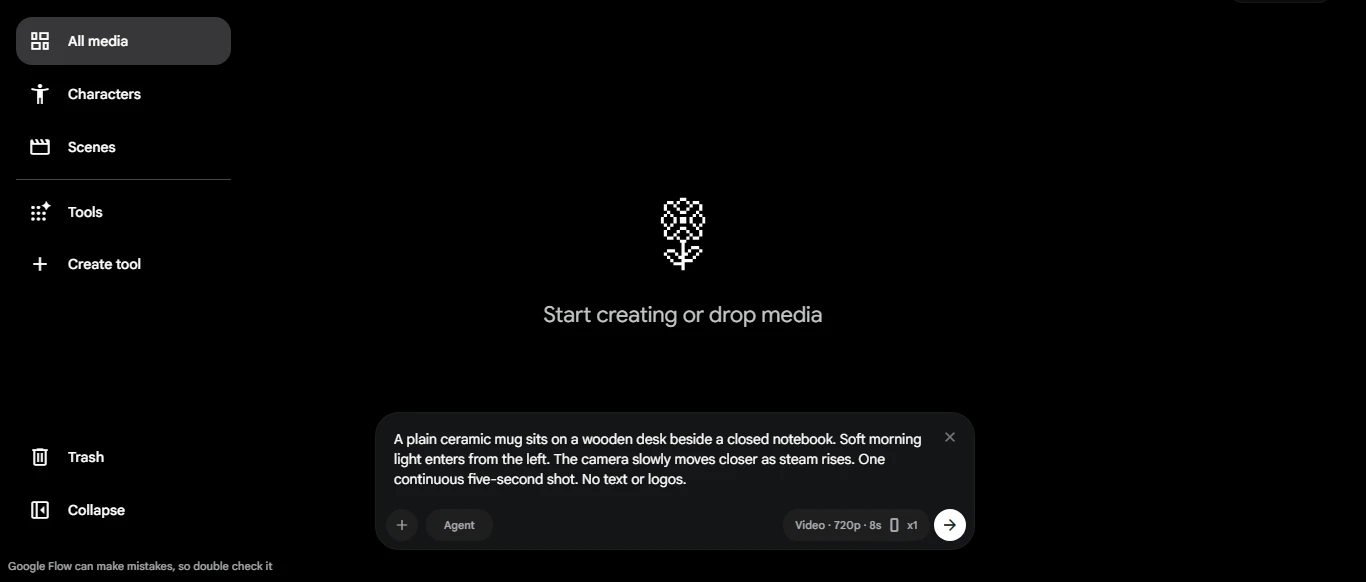
For footage tools, try this prompt:
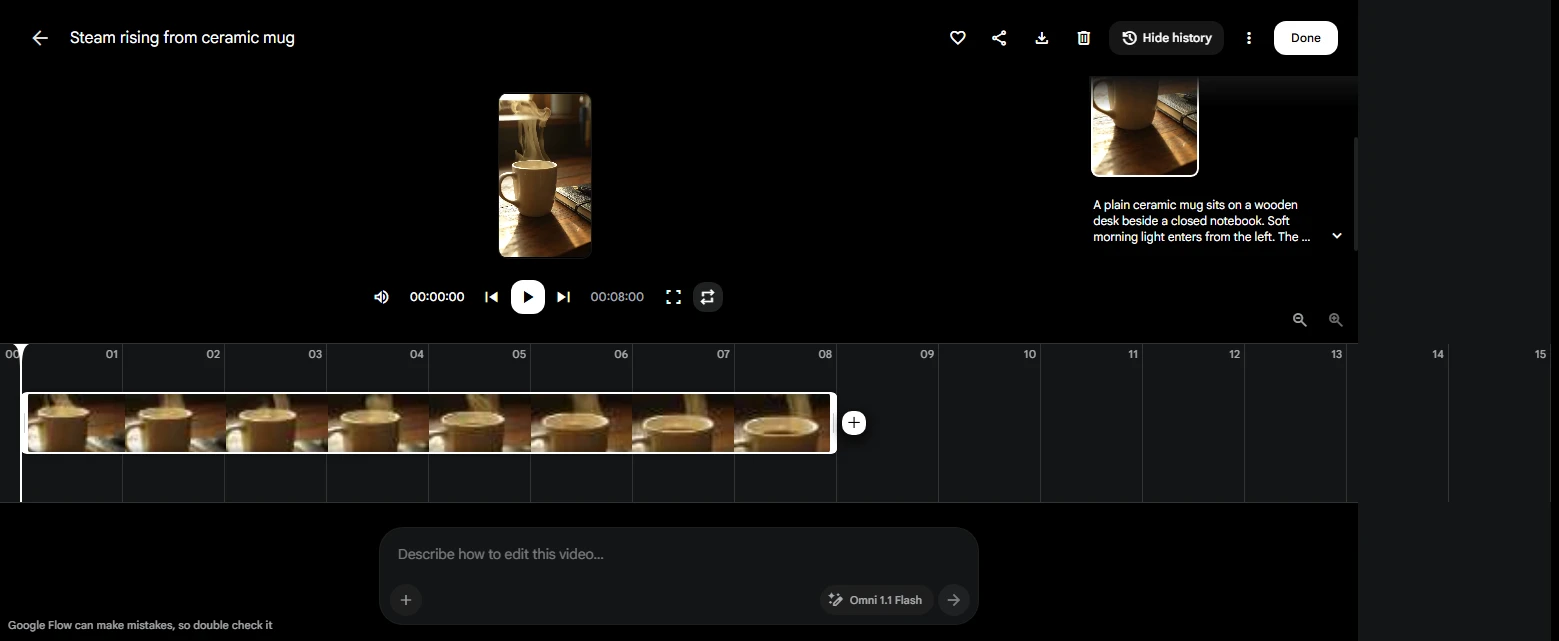
A plain ceramic mug sits on a wooden desk beside a closed notebook. Soft morning light enters from the left. The camera slowly moves closer as steam rises. One continuous five-second shot. No text or logos.
Run three attempts with comparable duration and resolution, and keep the failures. For avatar tools, use the same 60-word script. For assembly tools, use the same brief and supplied media.
What this guide does and doesn’t include
This comparison is based on official documentation, pricing pages, and usage terms. It does not include our own hands-on benchmark results. When we test these tools ourselves, the results will be added here with dated screenshots and the plan tier used, and the “last updated” date will change to reflect it.
Record five things:
- Instruction accuracy: Did the requested action happen?
- Continuity: Did objects, hands, or faces change unexpectedly?
- Sound: Are speech, timing, and pronunciation acceptable?
- Editing effort: How much work remains before publication?
- Total cost: Include retries, upscaling, and extra assets.
Watch the full clip at normal speed and pause where movement changes. A good opening frame can hide a broken ending. Review it again in the final crop with captions visible.
Check resolution carefully. “4K” can mean native generation, upscaling, or export from an editor. Runway, for example, lists 4K upscaling, which is a different process from generating the original frames at that resolution.
For commercial work, save the plan terms and confirm permissions for uploaded images, voices, music, and people’s likenesses. Adobe’s partner-model coverage shows why platform-wide assumptions mislead: coverage depends on eligible models and the agreement.
Finally, review the destination’s disclosure rules. YouTube requires disclosure for qualifying realistic altered or synthetic content, while ordinary script assistance is a different situation. See its synthetic-content guidance.
Frequently Asked Questions
What is the best AI video generator for beginners?
InVideo is the easiest starting point for a complete narrated video. HeyGen suits a presenter script, and Midjourney suits animating an existing illustration. Beginners do best choosing one simple task before learning advanced camera or reference controls.
What is the best free AI video generator?
Runway is a good starting option for trying creative generation with a limited one-time allowance, and HeyGen is a practical starting point for avatar videos. Compare the restrictions with your goal, especially download access, watermarking, and commercial permissions.
Which AI video generator includes voiceover or sound?
Veo supports sound generated with the scene. HeyGen and Synthesia suit spoken presenter scripts, and InVideo supports narrated video creation. Scene audio, voiceover, and avatar speech solve different problems, so choose the type you actually need.
Can I use AI-generated videos commercially?
That depends on the provider, plan, selected model, and assets you supply. Check the applicable terms before publishing. A watermark-free download does not establish commercial permission, and a subscription does not grant rights to someone else’s music, image, or voice.
Is Sora still an alternative to Veo?
No. OpenAI discontinued Sora’s web and app experiences on April 26, 2026, and the Sora API on September 24, 2026. See OpenAI’s official Sora discontinuation notice.
Final Verdict: Choose One Project Before One Subscription
For creative flexibility, Runway is the strongest all-rounder, for scenes with built-in sound, choose Veo. For assembling a full explainer, choose InVideo and for presenter videos, compare HeyGen and Synthesia against your script and revision workflow.
The best AI video generator online is the one that helps you finish useful work within your budget. Pick two suitable tools, give them the same small assignment, and compare the footage you would actually publish. Start a monthly subscription only after that comparison.