What Is Gemini AI? I Tested Google’s Assistant So You Don’t Have To

I’ll be honest, when I first opened Gemini, I wasn’t expecting much. I’d already been using ChatGPT for months. My assumption was that Google was just playing catch-up. A few weeks of real use changed my mind. That shift happened once I started using Gemini inside Gmail and Docs instead of as a standalone chatbot.
If you’re wondering what is Gemini AI, why it keeps showing up in your Google Search results, and whether it’s worth adding to your daily workflow, this guide has you covered. It’s based on real use, not five minutes of poking around.
By the end, you’ll know how Google Gemini AI works, what it’s genuinely good at, where it falls short, what it costs, and how it stacks up against ChatGPT.
What Is Gemini AI, Exactly?
Gemini is Google’s family of AI models and the consumer assistant built on top of them. It replaced Google’s earlier Bard chatbot. Today it sits at the center of nearly everything Google does with AI, search, Gmail, Docs, Android phones, and even smart home cameras.
Most AI tools only handle text. Gemini was built to work across formats from the start. You can hand it a paragraph, a photo, a voice recording, or a chunk of code. It reasons across all of that in the same conversation. That’s what “multimodal” means, and it’s the main thing that sets Gemini apart from older, text-only chatbots.
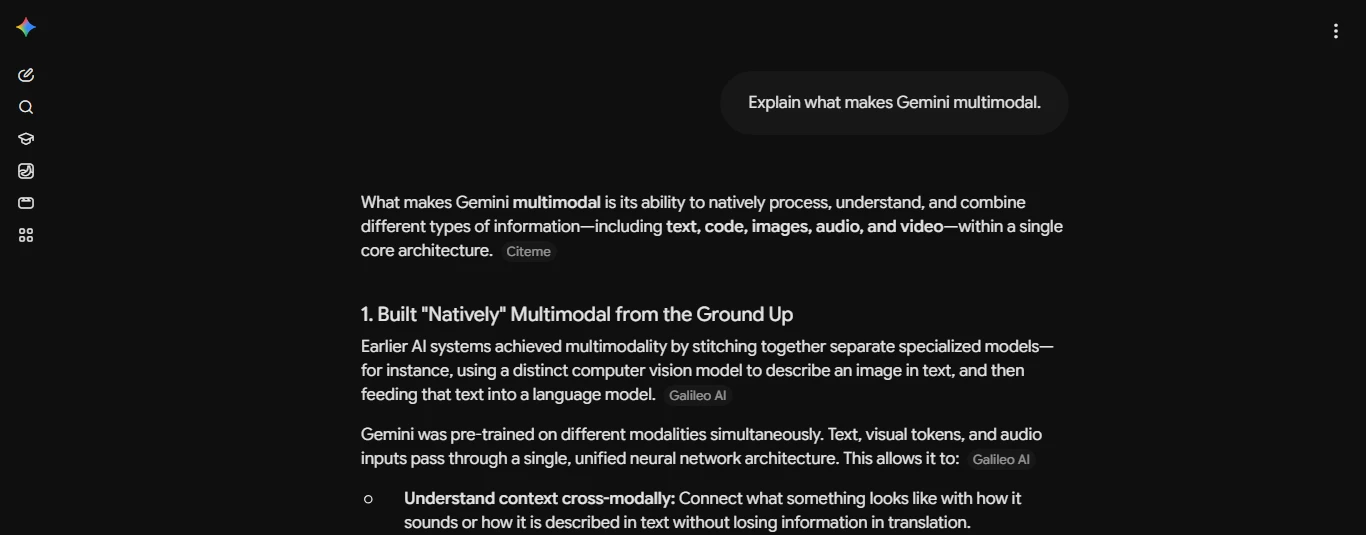
Google organizes its models by size and speed rather than a single version number. The lighter models handle quick, everyday questions. The heavier ones handle complex reasoning, research, and multistep tasks. When you use Gemini through the app or in Search, Google routes your request to whichever model fits the job.
How Does Gemini AI Work?
At a basic level, Gemini works like most large language models. It trains on enormous amounts of text, images, and other data. Then Google fine-tunes it to follow instructions and hold a conversation. What makes it different in practice is how deeply it connects to Google’s own ecosystem.
Here’s what that looks like day to day:
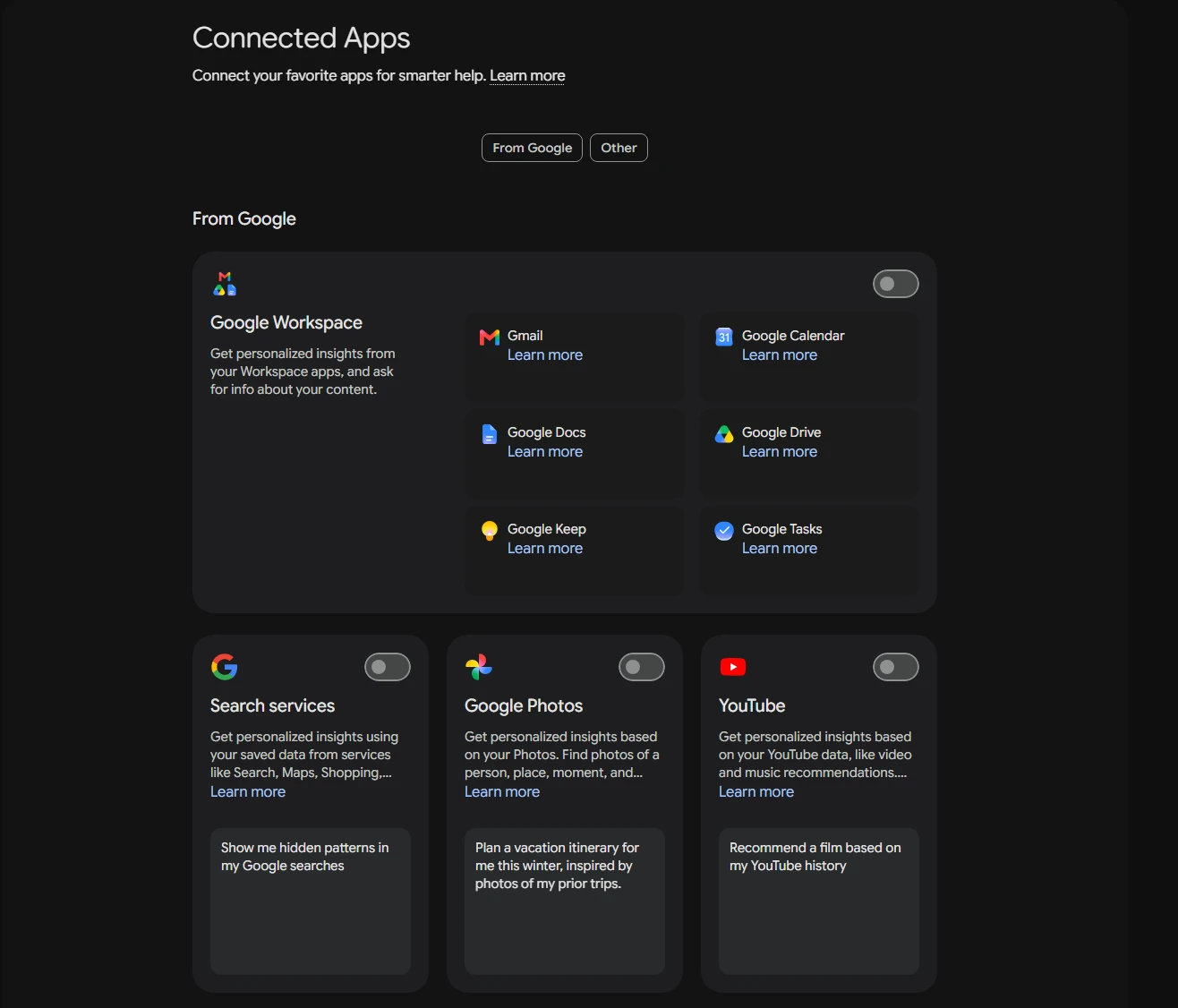
- It understands context from your Google account. If you give it permission, Gemini can read a document in Drive, pull details from an email thread, or check your calendar before answering.
- It reasons step by step. For harder questions, like planning a project or comparing financial options, it breaks the problem down instead of guessing at an answer.
- It learns from what you give it, not just what it already knows. A Google representative I came across while researching this piece put it plainly: Gemini is only as useful as the information you feed it. Vague prompts get you vague answers. That matches my own experience exactly. The moment I started uploading actual files and screenshots, the answers got noticeably sharper.
If you’re used to typing short prompts into ChatGPT, this is the biggest adjustment. Gemini rewards specificity and context far more than clever prompt phrasing.
What Is Gemini AI Used For?
This is where most people get stuck. Gemini isn’t just one tool, it’s closer to a toolbox. Here’s how I’ve actually used it, broken down by task.
Everyday Questions and Writing Help
For quick answers, drafting emails, or summarizing a long article, the fast, lightweight model handles it in seconds. I use this constantly for rewriting clunky sentences and shortening long paragraphs before I send them.
Research and Reports
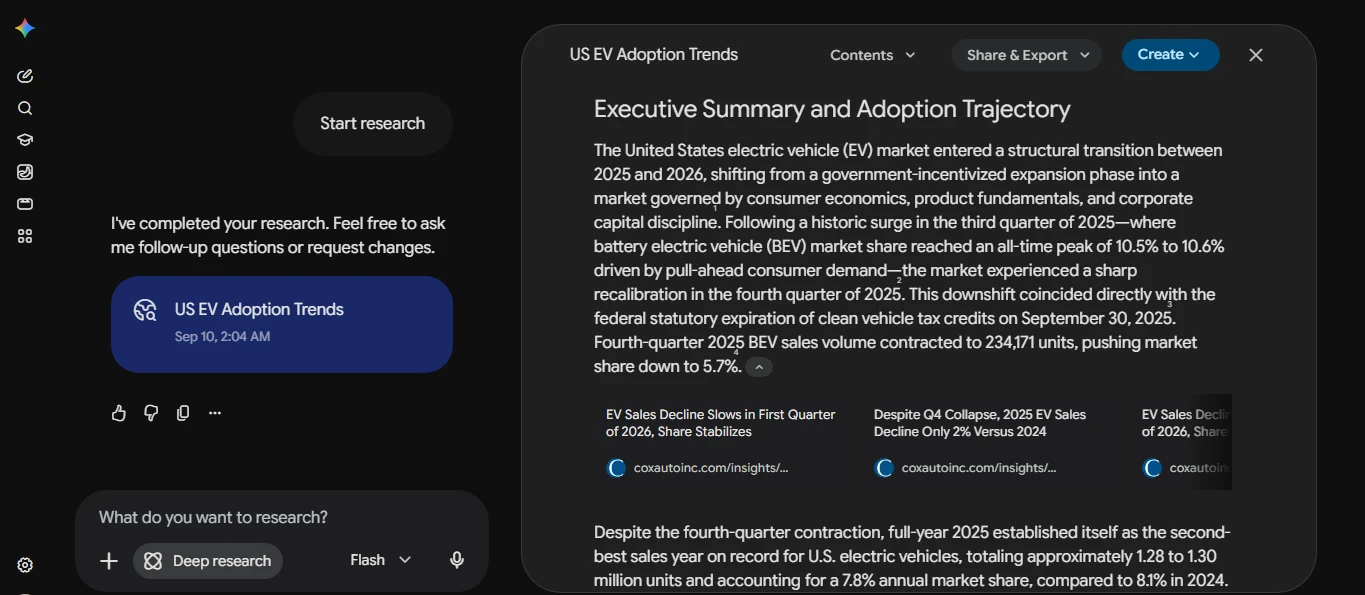
The Deep Research feature surprised me. Give it a topic, and it builds a research plan, pulls from multiple sources, and hands you a structured report with links back to its sources. It’s not perfect. You still need to verify anything you plan to publish or present. But it saves real time on the first draft of a research task.
Long-Form Writing and Code Editing
A side-by-side editing panel opens next to your conversation. It’s useful for drafting longer documents or working through code changes without losing your place in the chat. If you’ve used a split-screen code editor before, it feels familiar.
Hands-Free, Real-Time Conversations
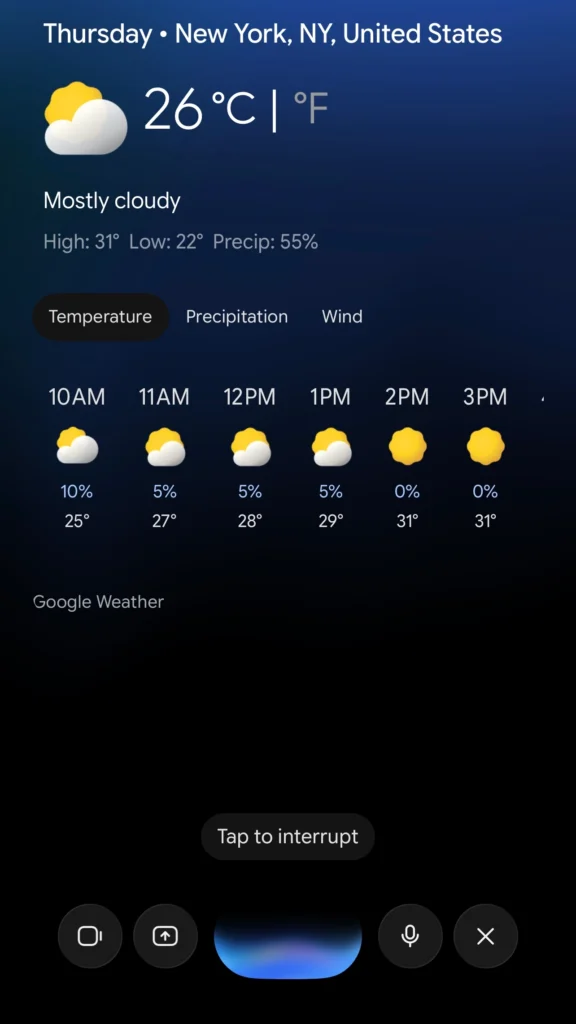
Voice mode lets you talk to Gemini out loud, even with your phone locked or the app running in the background. I’ve used this while cooking, asking it to walk me through a recipe conversion. I’ve also used it while driving, asking it to summarize an email I didn’t want to read off my phone.
Visual Tasks Through Your Camera
You can point your phone’s camera at something, an appliance, a menu, a math problem and ask Gemini what it sees. I tested this on a coffee machine with a confusing control panel. Gemini correctly explained what each button did.
Gemini AI Features Worth Knowing About
A few features stand out enough to call out on their own:
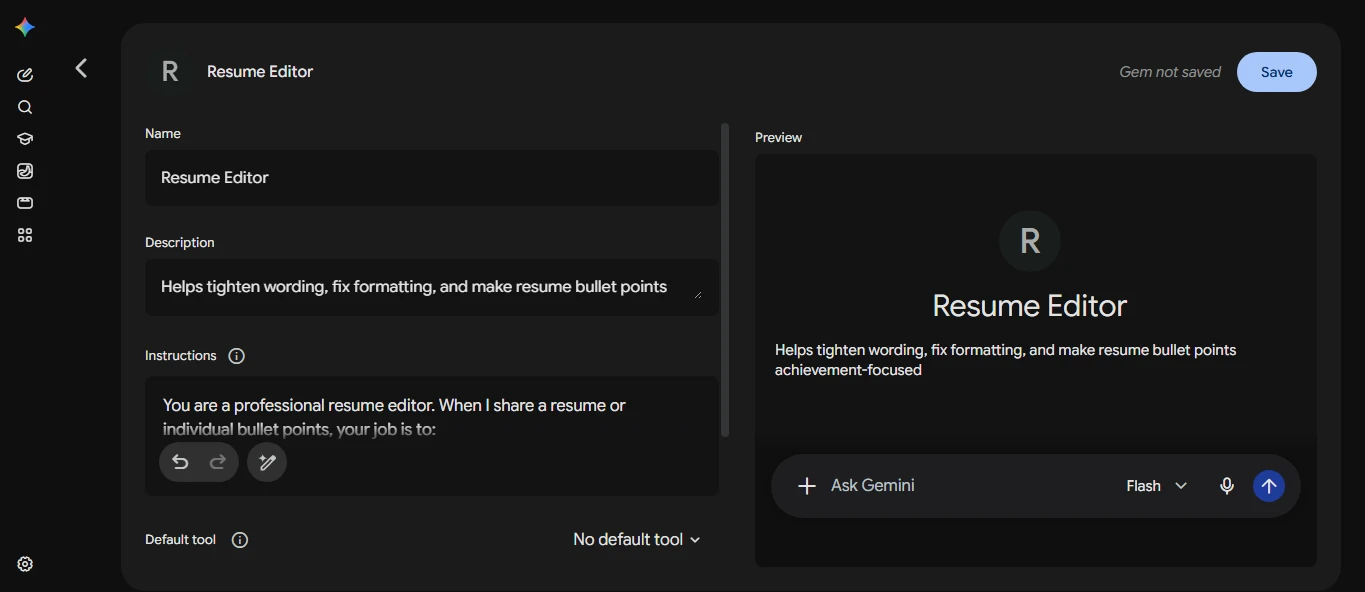
- Custom assistants (“Gems”). You can build a version of Gemini with its own instructions and focus area. Say, one that only helps with resume editing, or one tuned for a specific coding project.
- Image editing and generation. Google’s current image model can swap out objects in a photo, change backgrounds, or blend elements from separate images.
- Video and music generation. Separate models handle video creation and editing, plus music generated from text or image prompts. Access depends on your plan and region.
- Search integration. Gemini powers the AI-written summaries at the top of Google Search results. It also drives a fuller conversational search mode for longer, multi-part questions.
- Task automation. An agentic feature can handle scheduled, multistep tasks across your connected Google apps. Think of it as delegating a small recurring chore rather than answering a single question. Access is still limited depending on your plan.
What Can Gemini AI Do for Different Types of Users?
Gemini AI for Coding
I’ve used Gemini for debugging small scripts, explaining error messages, and cleaning up messy code. It handles this well, especially when you paste in the surrounding context instead of just the broken line. It won’t replace a dedicated code assistant for large, complex codebases. For everyday scripting and learning a new language, though, it holds up well against other coding tools.
Gemini AI for Students
Students in the U.S. lean on Gemini for breaking down dense reading assignments, generating practice questions, and getting a second explanation of a concept a professor rushed through. The free tier covers most of what a student needs. Just check your school’s AI-use policy first, many now have one, before submitting anything Gemini helped draft.
Gemini AI for Business
For small business owners and teams already living in Google Workspace, the appeal is obvious. Gemini can summarize meeting notes pulled from Docs. It can draft replies inside Gmail. It can pull numbers together in Sheets without you switching tabs. If your business already runs on Google’s tools, that integration alone can justify a paid plan.
Is Gemini AI Free? Pricing Breakdown
Yes, Gemini is free to use as a personal assistant. The free tier is genuinely usable, not a stripped-down demo. It includes the fast everyday model, limited access to the more powerful reasoning model, image generation, Deep Research, voice mode, the side-by-side editing panel, and custom Gems.
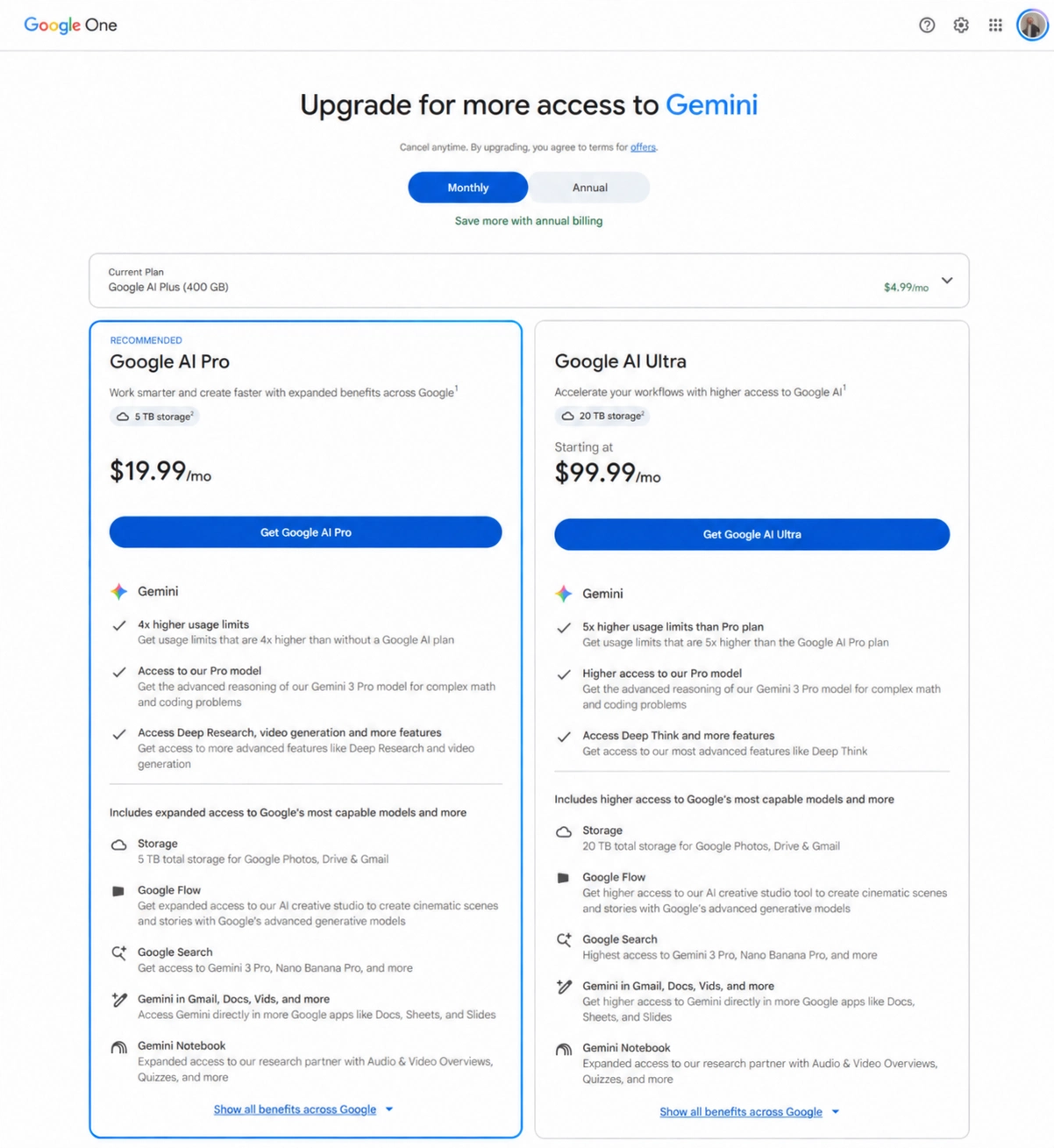
For higher usage limits and extra features, Google offers three paid tiers:
| Plan | Price | Best for |
|---|---|---|
| Google AI Plus | $4.99/month | Light upgraders who hit free-tier limits occasionally |
| Google AI Pro | $19.99/month | Regular users who want higher limits and more model access |
| Google AI Ultra | Starts at $99.99/month | Power users, creators, and businesses needing top-tier models and generation limits |
Pricing and included features vary by country, so check Google’s official pricing page for what’s currently on offer in your region before subscribing. Developers building their own apps on Gemini pay separately through Google’s API. A free tier is available there too, for testing before you commit to anything. Since Google adjusts these tiers periodically, it’s worth checking Google’s latest announcement on AI subscription changes if you’re reading this well after publication.
Gemini AI Benefits and Limitations
The Benefits
- Deep integration with tools you probably already use — Gmail, Docs, Sheets, Calendar, and Android.
- A genuinely useful free tier, unlike some competitors that gate almost everything behind a paywall.
- Strong multimodal handling — text, images, voice, and video in one conversation.
- Research features that save real time on the first draft of a report or summary.
The Limitations
- It’s only as good as your input. Short, vague prompts produce short, vague answers. You have to put in some effort.
- Some features are still rolling out. Agentic task automation and certain generation tools remain limited to specific plans or regions.
- Accuracy isn’t guaranteed. Like any AI tool, it can get things wrong, especially with fast-moving or highly specific information. Google walked back some earlier AI Overview mistakes, which is a good reminder to verify anything important before you rely on it.
- Privacy needs a look before you dive in. Gemini can use your activity to improve Google’s services unless you turn that setting off. Review your privacy controls first if you plan to use it for sensitive material. Google’s Gemini Apps Help Center walks through exactly what each setting does.”
Gemini AI vs ChatGPT: Which Should You Use?
I get asked this constantly. The honest answer depends on where you already spend your time between Gemini and ChatGPT.
Pick Gemini if: you live inside Gmail, Docs, Sheets, or an Android phone. You want your AI assistant to reach into those tools instead of living in a separate tab.
Pick ChatGPT if: you want a polished standalone chat experience or a larger third-party plugin and app ecosystem. It’s also the better pick if you’re not tied to Google’s suite of products.
In my own use, I keep both open. Gemini wins for anything tied to my Google account, or when I need it to look at my screen or camera. ChatGPT still edges it out for certain writing styles and some coding scenarios, that’s mostly personal preference, not raw capability. Neither tool wins across the board. It comes down to which ecosystem fits how you already work.
How to Use Gemini AI: Getting Started
- Download the app or visit Gemini’s website, or open it through your Google account on Android, iOS, Mac, or Chrome.
- Start with a specific task, not a vague question. Instead of “help me write an email,” upload the thread you’re replying to and state your goal.
- Connect the apps you actually use — Gmail, Calendar, Drive — through your permissions settings so Gemini can pull real context.
- Try Deep Research on a topic you already know well. That way you can judge its sourcing quality before trusting it on something new.
- Check your privacy settings, especially the activity and personalization controls, before feeding it anything sensitive.
Frequently Asked Questions
Is Gemini AI actually free to use?
Yes. The free version gives you real access to Gemini’s core models, image generation, Deep Research, and voice mode. Paid plans mainly raise your usage limits and unlock the most powerful reasoning models.
What is Gemini AI used for the most?
Most people use it for writing help, quick research, summarizing documents, and answering questions tied to Gmail, Docs, or Calendar. Developers and students also use it heavily for coding help and studying.
Is Gemini AI better than ChatGPT?
Neither tool wins universally. Gemini has the edge if you already use Google Workspace or an Android phone. ChatGPT tends to appeal to people who want a standalone assistant with a broader third-party app ecosystem.
Can Gemini AI see my screen or camera?
Yes. Through its live voice mode, you can share your screen or camera feed and ask questions about what it sees. That’s useful for comparing products, understanding an appliance, or working through a visual problem in real time.
Does Gemini AI work on iPhone?
Yes. Gemini has a dedicated iOS app alongside its Android, web, and Mac versions. You don’t need a Pixel or Android device to use it.
Final Thoughts
Gemini has grown from a basic chatbot into a genuine assistant. It now lives across your Google account, your phone, and your search results. It’s not flawless, you still need to double-check its answers and think about your privacy settings. But if you’re already inside the Google ecosystem, it’s worth spending real time with rather than dismissing as a ChatGPT clone.
If you’re choosing between AI tools for your own workflow, start with the free tier. Connect one or two apps you already use daily and see how it fits before paying for anything. Want a closer, feature-by-feature look at how it compares with other AI assistants? That’s a good next guide to check out on this site.