

I signed up for ChatGPT the week it launched, and I’ve opened it almost every working day since. Back then it was a text box that guessed the next word. Today I use it to clean up client emails before 9 a.m., pull apart a 60-page PDF over lunch, and hand off a research task that finishes while I’m at the gym.
That gap is why most beginner guides feel useless now. They tell you to type a question and press Enter, which is like teaching someone to drive by explaining the steering wheel.
So this is the guide I wish someone had handed me. I’ll walk you through how to use ChatGPT properly in 2026: creating your account, choosing between Chat and Work mode, writing prompts that don’t produce generic mush, uploading files, using voice, protecting your data, and figuring out whether you need to pay. Everything here is from my own screen, tested on a US account in September 2026.
What Is ChatGPT and How Does It Actually Work?
ChatGPT is an AI assistant made by OpenAI that responds to text, image, voice, and file inputs in plain conversation. You describe what you want, and it produces an answer, a document, a spreadsheet, an image, or a completed multi-step task.
The short version of how it works
Under the hood, ChatGPT runs on large language models — the GPT-5.6 family as of this writing, with GPT-6 Astra rolling out to paid accounts since early September 2026. They were trained on enormous amounts of text and learned the statistical patterns of how language fits together. When you send a prompt, the model predicts the most plausible continuation, token by token.
Two things follow from that, and they explain almost every beginner frustration:
- It’s a prediction engine, not a database. It can produce a confident answer that’s simply wrong. That’s a hallucination, and it still happens in 2026 — less often than in 2023, but it happens.
- The quality of your input shapes the output more than the model choice does. Vague prompt in, vague answer out. I’ve watched people blame the model when the real problem was a nine-word request.
What ChatGPT can actually do today
Here’s what I personally rely on it for, and this list has grown a lot:
- Explaining hard concepts in simpler terms
- Writing and editing emails, blog drafts, cover letters, and ad copy
- Reading files you upload: PDFs, spreadsheets, Word docs, slide decks, images
- Generating and editing images from a text description
- Searching the live web and citing sources
- Writing, debugging, and explaining code
- Holding a real-time spoken conversation
- Running longer projects end to end and handing you a finished file
How to Create a ChatGPT Account and Log In
To start using ChatGPT, go to chatgpt.com, click Sign up, and register with an email address or your Google, Microsoft, or Apple account. It takes under two minutes and costs nothing.
Signing up on the web
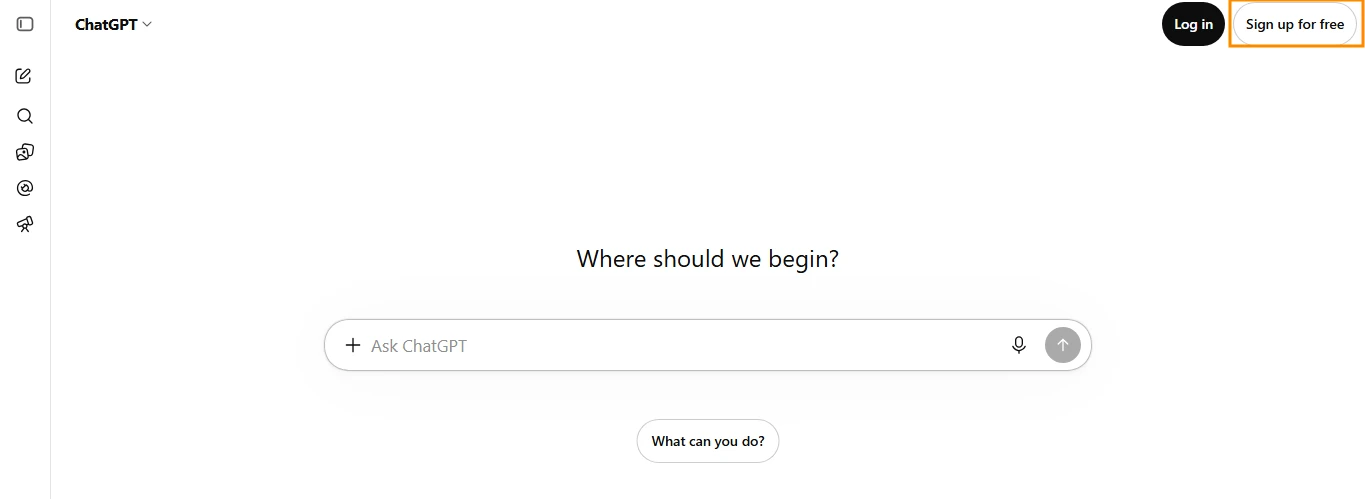
Open your browser and head to chatgpt.com. Click Sign up for free in the top-right corner. If you use an email address, you’ll set a password and then verify a phone number, OpenAI does this to cut down on bot accounts, which is a little ironic but fair enough.
If you already have an account, click Log in instead.
Getting the apps
Install at least one app. The mobile app (iOS and Android) is where I do voice conversations and photo uploads. The desktop app for Mac and Windows was rebuilt in July 2026 to fold Chat, Work, and Codex into one program, and the older version now appears as ChatGPT Classic. If you installed it before mid-2026, check which icon you’re actually opening, some features only live in the new app.
If you can’t log in
Nine times out of ten a hard refresh fixes it. Beyond that: clear your cache or open an incognito window, turn off your VPN (region mismatches trip up verification), and check status.openai.com before assuming it’s your fault. And if you signed up with Google originally, use that same button every time, don’t switch to email and password later.
How to Use ChatGPT for Free in 2026
Yes, ChatGPT is still free, and the free tier got noticeably better in August 2026 when OpenAI removed the cap on text conversations for Free and Go users.
You get unlimited back-and-forth text chat on GPT-5.6 Luna, the everyday default model for free accounts. What’s still limited is everything that costs OpenAI real compute: image generation, file uploads, voice minutes, and access to the heavier reasoning models.
One change US users should know about: Free and Go accounts now show ads. OpenAI rolled out advertising on those tiers in 2026. Plus, Pro, Business, and Enterprise accounts don’t display them, which quietly makes “no ads” part of what a paid plan buys you.
My honest take: if you’re a student or a casual user, the free plan is enough. I ran a free account alongside my paid one for two months and only hit real friction when I tried to upload a batch of PDFs in one sitting.
How to Use ChatGPT: Your First Real Conversation, Step by Step
This is the part most tutorials rush. Don’t rush it, the interface changed in 2026, and the mode switcher at the top of the composer is the single most important control on the screen.
Step 1: Choose Chat or Work mode
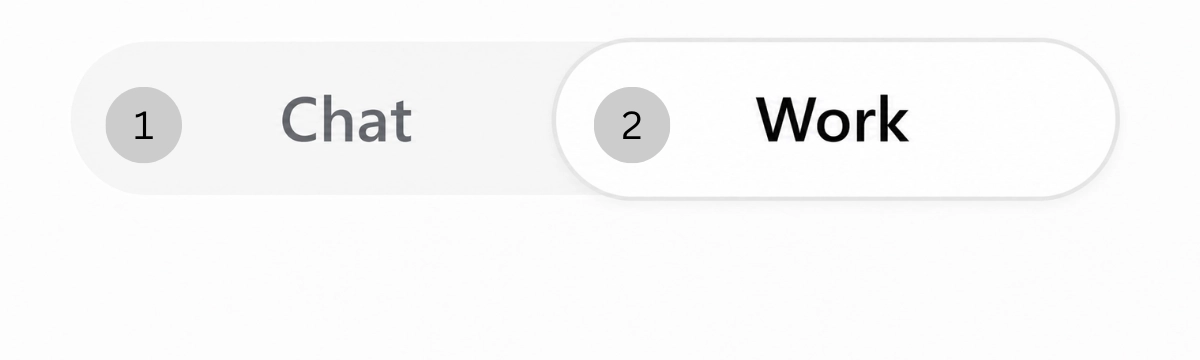
At the top of a new conversation you’ll see two options: Chat and Work.
Chat is the normal conversational mode. Quick questions, drafting, brainstorming, explaining things. It replies in seconds and you go back and forth.
Work is the agent. Launched July 9, 2026, it replaced the old Agent Mode, which OpenAI retired that August. Instead of answering and stopping, Work takes a brief, runs in the background for minutes or longer, browses public pages, processes your files, and hands back a finished deliverable: a spreadsheet, a report, a deck, a working page.
Two catches. Work is a paid feature on web and mobile, with limited access for Free and Go accounts through the new desktop app. And it reads public pages but won’t sign into sites for you the way Agent Mode did.
I use Chat for roughly 85% of what I do, and Work when I want a deliverable rather than a reply.
Step 2: Pick your model
On a paid plan, click the model dropdown in the conversation window. This dropdown is currently labeled “Thinking effort” in the interface.
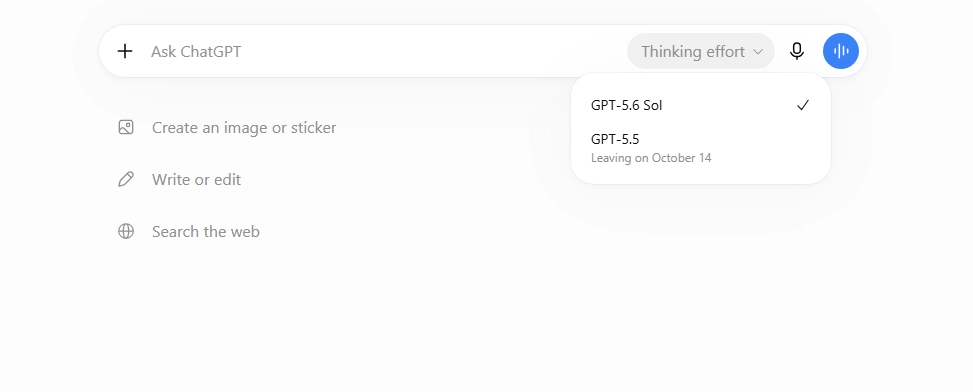
The naming is a moving target, so don’t memorize version numbers. What matters is the tier:
- Fast/Instant models (Luna on Free and Go) — everyday questions, drafting, quick edits
- Flagship reasoning models (Sol, available from Plus up) — analysis, long documents, code, anything with multiple steps
- Highest-effort variants (Sol Pro, Pro and Enterprise only) — the hardest problems, slower answers
Business and Enterprise accounts see a simplified picker labeled by effort: Instant, Medium, High, Extra High.
My rule of thumb: if I’d need more than 30 seconds of thinking to answer it myself, I switch to a reasoning model.
Step 3: Write your prompt
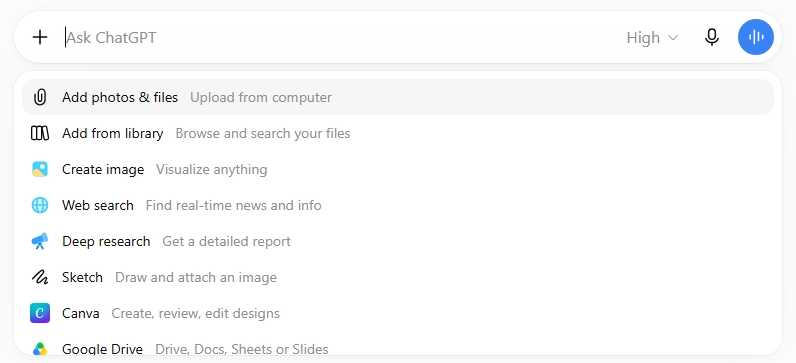
Type into the message bar and hit Enter. The plus (+) icon next to the bar is where the extra tools live, web search, deep research, file uploads, visualization, and connected apps if your workspace has them.
Step 4: Work with the response
The answer isn’t the end of the interaction. This is where beginners leave most of the value on the table.
- Edit your original prompt. Hover over your message, click the pencil, rewrite, resend. Cleaner than typing “no, I meant…”
- Ask for a revision. It remembers the thread, so “make it half as long and drop the last paragraph” works fine.
- Check the sources. Hover a source chip to see where a claim came from, or click through.
- Regenerate. Same prompt, fresh attempt. Good for creative work, less useful for facts.
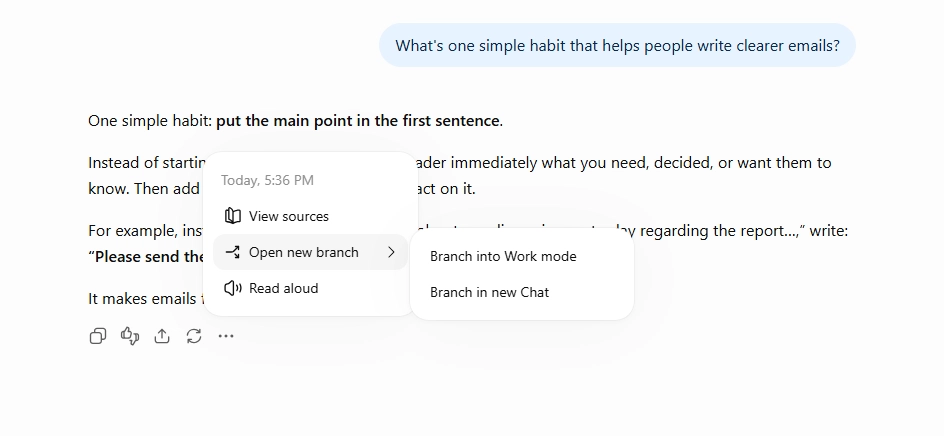
- Branch a new chat. Open the three-dot menu under a response and branch. You get a new thread starting from that exact point while the original stays intact. I use this constantly to try a second angle without destroying a good draft.
- Share. Generates a link to the conversation. On Enterprise accounts, sharing stays inside the workspace.
How to Write ChatGPT Prompts That Get Better Answers
A good ChatGPT prompt states the role, the task, the context, the format, and the constraints. Most bad results trace back to skipping three of those five.
My five-part prompt formula
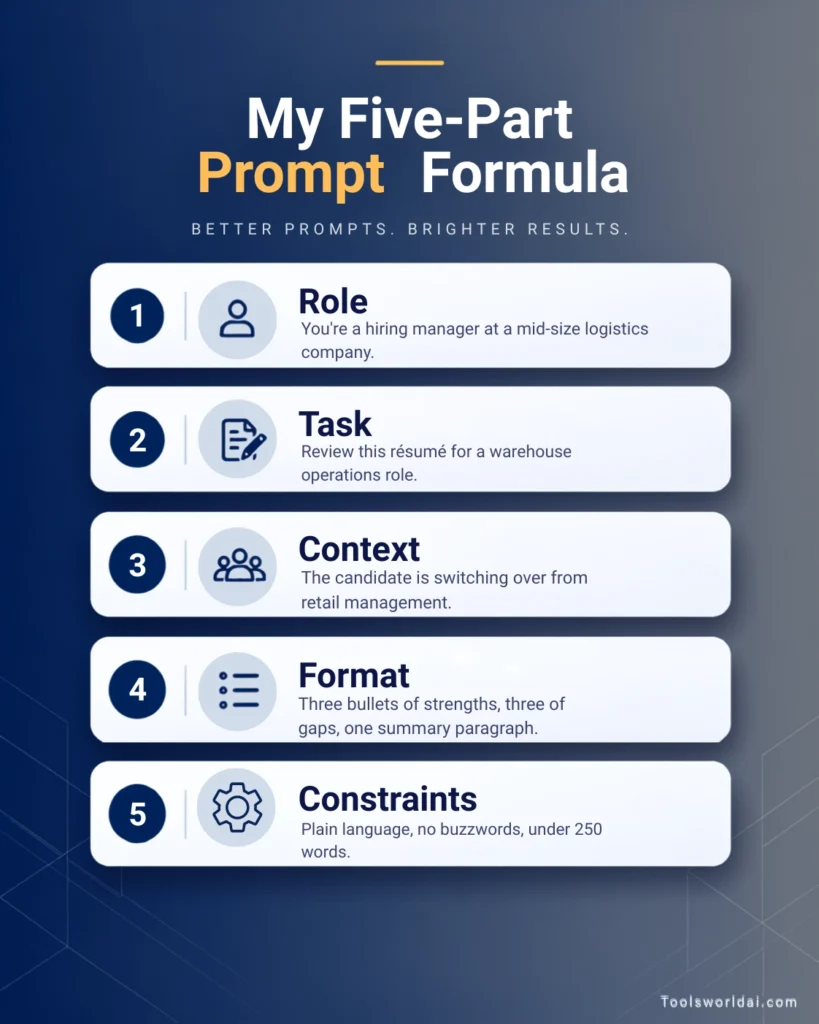
The structure I fall back on when quality matters:
- Role — “You’re a hiring manager at a mid-size logistics company.”
- Task — “Review this résumé for a warehouse operations role.”
- Context — “The candidate is switching over from retail management.”
- Format — “Three bullets of strengths, three of gaps, one rewritten summary paragraph.”
- Constraints — “Plain language, no buzzwords, under 250 words.”
Twenty extra seconds of typing. Saves three rounds of corrections.
Prompt examples you can copy today
For writing:
Rewrite this email so it’s friendlier but still firm about the deadline. Keep it under 120 words and don’t use the word “circle back.” Here’s the draft: [paste]
studying:
Explain amortization like I’m a first-year business student. Use one example with real numbers, then quiz me with three questions and wait for my answers before telling me if I’m right.
For coding:
This Python function returns None instead of a list. Walk me through why, line by line, then give me the corrected version with a comment explaining the fix. [paste code]
research:
Search the web and summarize what changed in US federal student loan repayment rules in 2026. Cite every claim with a source link, and flag anything that’s disputed.
For work:
I have a team of six and a $4,000 quarterly training budget. Draft three options for spending it, each with a rough cost breakdown and the main trade-off. Put it in a table.
Three prompting habits that changed my results
Give it an example. Want a specific tone? Paste something you’ve written and say “match this voice.” Beats any adjective.
Ask it to ask you. My favorite trick: “Before you answer, ask me three questions that would help you do this better.” The follow-ups usually reveal what I forgot to mention.
Tell it what not to do. “Don’t use bullet points” or “don’t mention pricing” saves a whole round of edits.
Using Files, Images, Voice, and Web Search
This is where ChatGPT stops being a chatbot and starts being a tool.
Uploading files and images
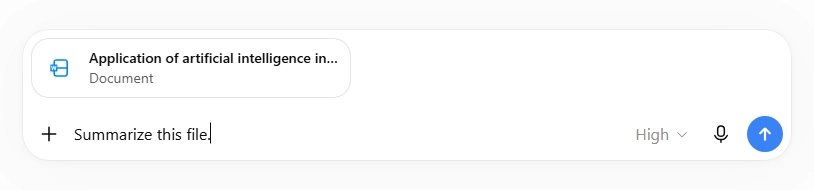
Click the plus (+) icon and choose to add photos and files, or drag and drop straight into the message bar. You can also pull files from Google Drive or OneDrive once they’re connected.
On mobile, tap the plus icon and either pick from your camera roll or take a photo on the spot. If you only care about one part of an image, tap that region and ask about it — genuinely useful for screenshots of dense dashboards.
What I upload regularly: contracts I want summarized, spreadsheets I need charted, and screenshots of error messages.
Talking to ChatGPT with voice
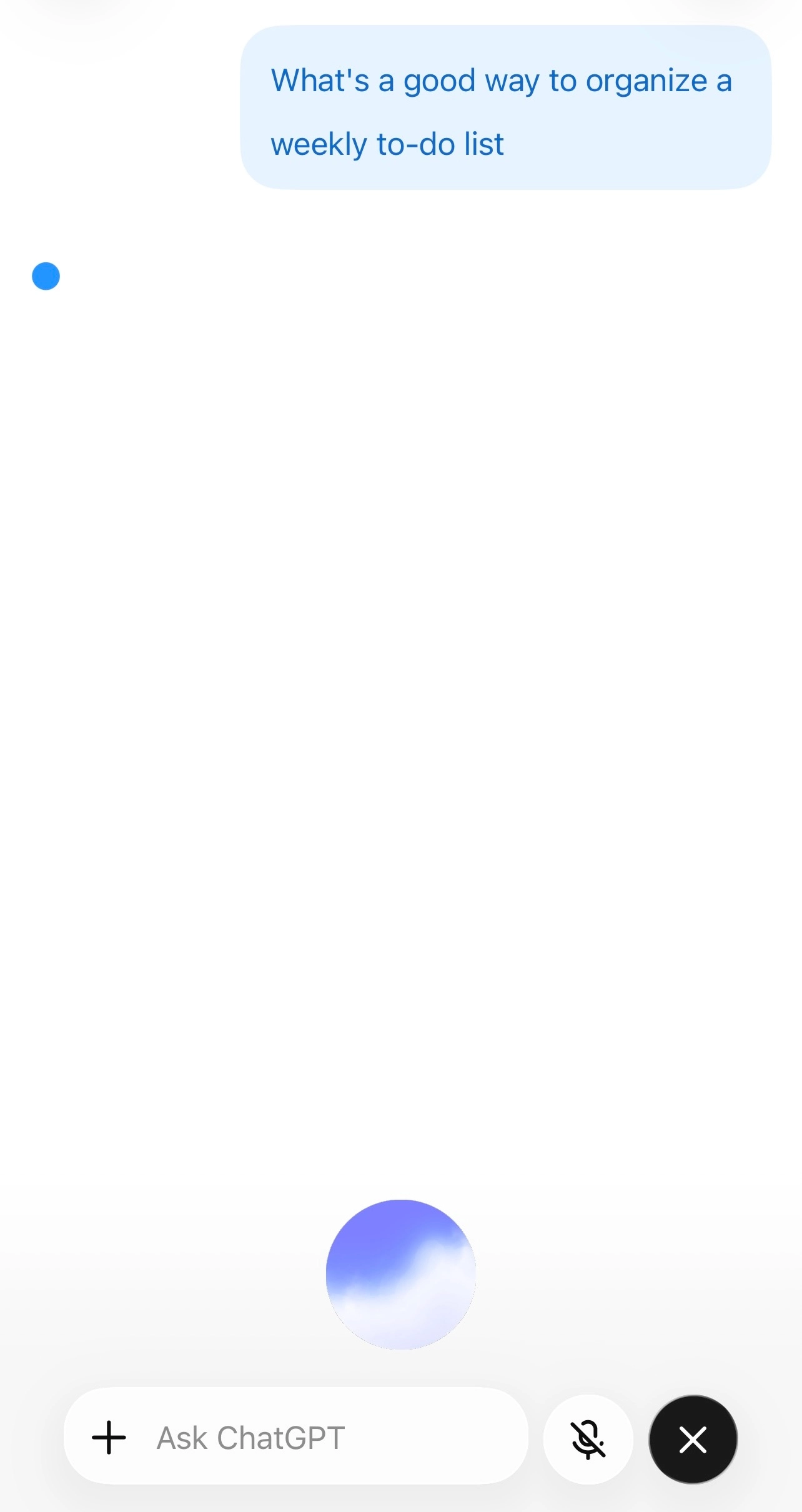
Tap the voice icon in the message bar — it looks like sound bars. A circle appears, and that’s your cue to start talking. You can interrupt it mid-sentence the way you would a person, which took me an embarrassingly long time to realize.
Settings let you pick a voice mode. Live is the default and handles natural back-and-forth, including web search mid-conversation. A turn-by-turn option transcribes your speech first and responds after, which works better in noisy rooms. Either way, the full transcript saves to your chat history when you finish.
Web search and deep research
ChatGPT can search the live web on every plan now. It usually decides on its own when a question needs current information, but you can force it: click the plus icon and select web search.
For heavier work, deep research runs through dozens or hundreds of sources and returns a long, cited report. Free accounts get a few of these per month; Plus and above get considerably more. I use it for competitive research, and it saves me two to three hours each time.
Image generation is built in too. Describe what you want in plain English and it produces it. Free and Go accounts have daily caps here, and those didn’t change when the text limits were lifted.
Making ChatGPT Work Like It Knows You
If you’re retyping the same instructions in every chat, stop. Three features fix that permanently.
Custom instructions
Click your profile, then Personalization. The toggle for this used to sit right on that page, but OpenAI folded it into the Memory section at some point this year, so now you’ll scroll down to Memory, and click the “custom instructions” link inside the memory summary text. That opens a text box where you type in whatever you want ChatGPT to always keep in mind.
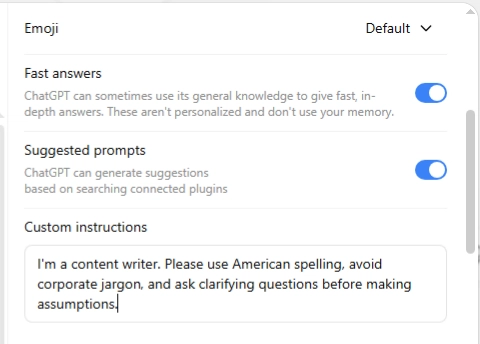
Mine says I’m a US-based content writer, that I want American spelling, that I hate corporate filler, and that it should ask before assuming. Type yours in, hit Save, and every chat from then on carries it.
Memory
Memory is the automatic version of the same idea. ChatGPT picks up details as you chat and carries them forward without you telling it to.
To manage it, go to Personalization, scroll to the memory summary, and click Manage. You can highlight any specific memory to correct it, or delete everything and switch memory off entirely.
One thing worth knowing: deleting your chat history does not delete your memories. They’re separate systems. You have to clear memories directly.
Projects and scheduled tasks
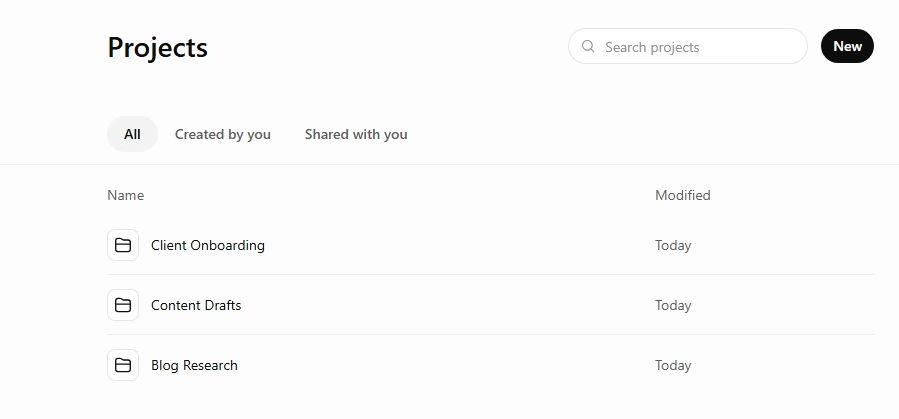
Projects group related chats, files, and instructions into one container.I keep one per client, each with its own reference files and instructions. The Projects page keeps them all visible in one place, so I can jump between clients without digging through old chat history. You can share a project by email or link.
Scheduled tasks run on a timer. Describe the task and when you want it — “every Monday at 8 a.m., summarize the top AI news from the past week” — and it runs whether you’re online or not, then notifies you by push and email. If an old task went quiet recently, check the list: anything built on the retired Agent Mode stopped running.
Common Mistakes, Troubleshooting, and Staying Safe
Mistakes I see constantly
Treating it like a search engine. One-line queries get one-line-quality answers.
Accepting the first draft. The second attempt, after you’ve said what was wrong, is almost always the usable one.
Trusting specifics without checking. Statistics, citations, legal details, court cases — verify every one. This is the mistake that has ended careers.
Running one endless thread. Long conversations drift as early instructions fall out of active context. Start fresh for a new task.
Quick troubleshooting
| Problem | What usually fixes it |
|---|---|
| Responses cut off mid-sentence | Type “continue” |
| Answers feel generic | Add role, audience, and format to your prompt |
| It forgot something from earlier | Start a new chat and re-paste the essentials |
| It refuses a reasonable request | Rephrase with clear, legitimate context |
| Slow or stuck responses | Refresh, or switch to a faster model |
Privacy: three settings to change now
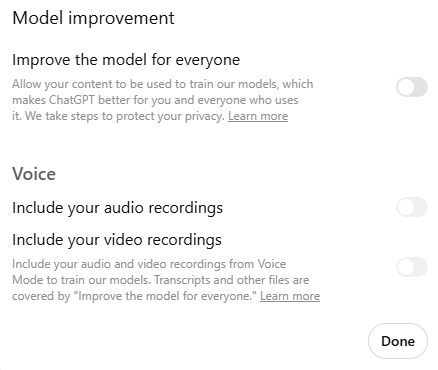
Turn off model training. Profile → Settings → Data controls → toggle off “Improve the model for everyone.” On consumer plans this is on by default. Business and Enterprise accounts don’t train on your data to begin with.
Use temporary chats for anything sensitive. Click the temporary chat icon in the top-right of a new conversation. It won’t create or use memories and won’t appear in your history. OpenAI may still retain a copy for around 30 days for safety review, so it’s not a vanishing act.
Know what never to paste. Social Security numbers, full account numbers, passwords, client data covered by an NDA, anything protected under HIPAA. I redact before uploading, every time, without exceptions.
My fact-checking routine
Anything that goes into published work gets three checks: click through to at least one primary source, confirm every number against the original document, and search the name of any person, study, or case cited. Five minutes, and it has caught real errors more than once.
ChatGPT Free vs Paid: Which Plan Do You Actually Need?
As of September 2026, US pricing runs: Free at $0, Go at $8/month, Plus at $20/month, Pro at $100 or $200/month, Business from about $25 per seat, and Enterprise on a custom quote.
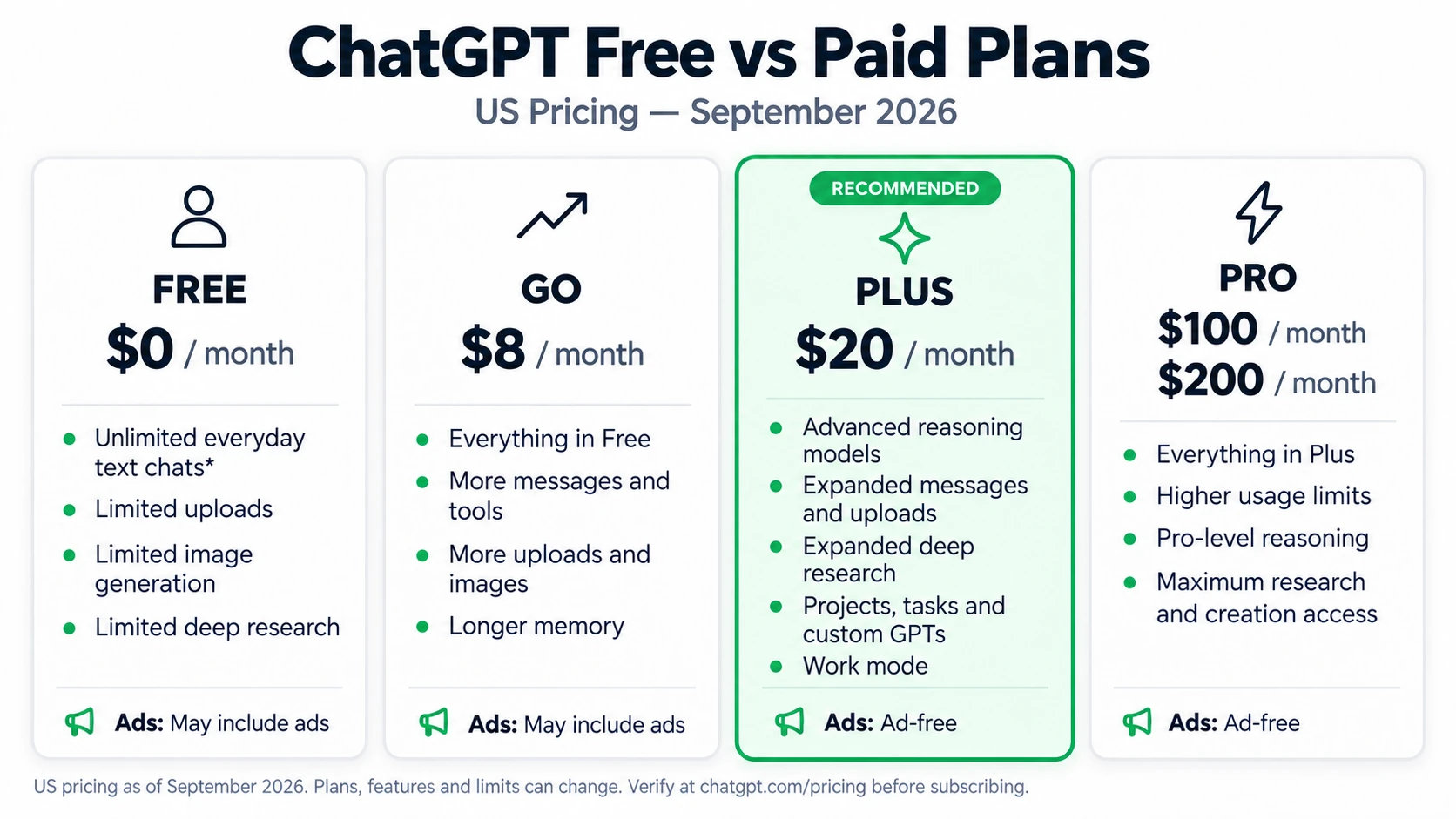
Here’s how I’d actually choose:
Free ($0) — Unlimited text chat, web search, limited images and uploads, ads. Fine for students and casual users.
Go ($8) — Higher upload, image, and memory limits, still ad-supported, no Work mode or top-tier models.
Plus ($20) — The first tier with the flagship reasoning model, plus Work mode, deep research, and no ads. This is the one I recommend to almost anyone using ChatGPT for a job. Save one hour a month and it’s paid for itself.
Pro ($100 / $200) — Same models as Plus with far more usage headroom (roughly 5x and 20x). Only worth it if you’re hitting Plus limits regularly, and check the tier label in billing because the two are easy to confuse.
Business / Enterprise — Per-seat pricing, admin controls, and no training on your company data by default.
One US-specific note: ChatGPT for Teachers is free for verified K-12 educators through June 2027, and universities can get ChatGPT Edu.
Frequently Asked Questions
Is ChatGPT free to use?
Yes. A free account gives you unlimited text conversations, web search, and limited image generation, file uploads, and voice. Free and Go accounts in the US display ads. Paid plans start at $8/month.
Does ChatGPT remember previous conversations?
By default, yes. Memory picks up details across chats and applies them to future responses. You can edit individual memories, delete them all, or switch memory off in Personalization settings. Deleting chat history alone doesn’t clear them.
How accurate is ChatGPT?
Much better than two years ago, but still capable of stating something false with total confidence. It cites sources more often now, which makes verification quick. Treat it as a fast first draft, not a final authority, especially for medical, legal, or financial questions.
Can I use ChatGPT on my phone?
Yes. The iOS and Android apps do everything the web version does, plus camera uploads, tap-to-ask on part of an image, and screen sharing during voice chats. Conversations sync across every device you’re signed into.
What happened to Canvas and Agent Mode?
Both were retired during 2026. Canvas, the split-screen editor, was removed, and Agent Mode was shut off in August. ChatGPT Work replaces both for producing documents and handling multi-step tasks, though it can’t sign into websites the way Agent Mode could.
Start Using ChatGPT Properly Today
Here’s what I’d tell anyone starting out: don’t try to learn all of this at once.
Pick one task you do every week and hand it over. Meeting summaries. Client emails. Turning messy notes into a plan. Do that same task five times and you’ll learn more about prompting than any guide can teach you, including this one.
Then add one feature at a time: file uploads next week, custom instructions the week after, Work mode when you’ve got a project worth delegating.
The people getting real value from AI in 2026 aren’t the ones who memorized the feature list. They’re the ones who built a few habits and kept going.
Ready to go further? Head over to our ChatGPT prompt library for 100+ copy-and-paste prompts organized by job role, or browse our AI tool reviews at Toolsworldai to see which assistant fits your workflow best. And if you found this guide useful, drop a comment telling me what you’re planning to use ChatGPT for first — I read every one and often turn them into future tutorials.
Last updated: September 2026. Plan pricing, model names, and feature availability change frequently — verify current details at chatgpt.com/pricing before subscribing.